August 2026: What’s new in AntsRoute?

Blog > Product updates > August 2026: What’s new in AntsRoute?
August 2026: What’s new in AntsRoute?
Published on 3 September 2026 • Reading time: 10 min read
This month, AntsRoute is introducing several new features designed to help you automate more of your operations, monitor your routes more effectively, and collect the information you need from the field more easily.
Coming up: a new automation system, an Agenda view for monitoring your routes in real time, custom fields to be completed at the start or end of a route, new options for managing departure locations and prioritizing jobs, as well as a new rescheduling request option on the booking site.
Discover all the new AntsRoute features released in August.
In this article:
- Automate recurring actions in AntsRoute
- Monitor route progress from a new Agenda view
- Collect information at the start and end of routes
- Set departure locations based on previous routes
- Prioritize jobs with an assigned driver
- Allow customers to request an appointment reschedule
- Simpler and more efficient webhook management
- View absences directly in the mobile app schedule
- Other improvements
Automate recurring actions in AntsRoute
This is the highlight of our August update: automations are now available in AntsRoute.
This new system allows you to automatically perform certain actions based on business rules that you define.
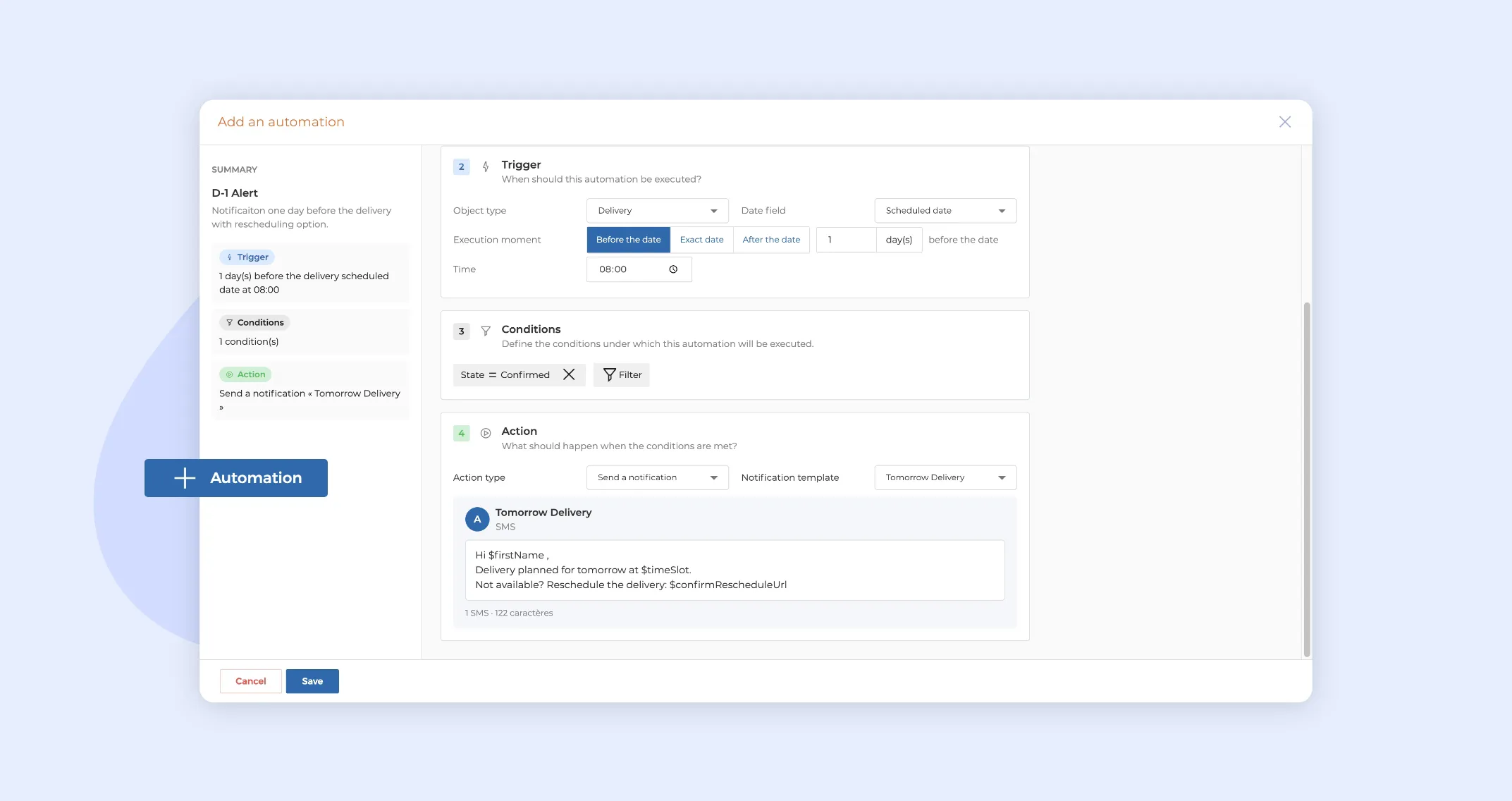
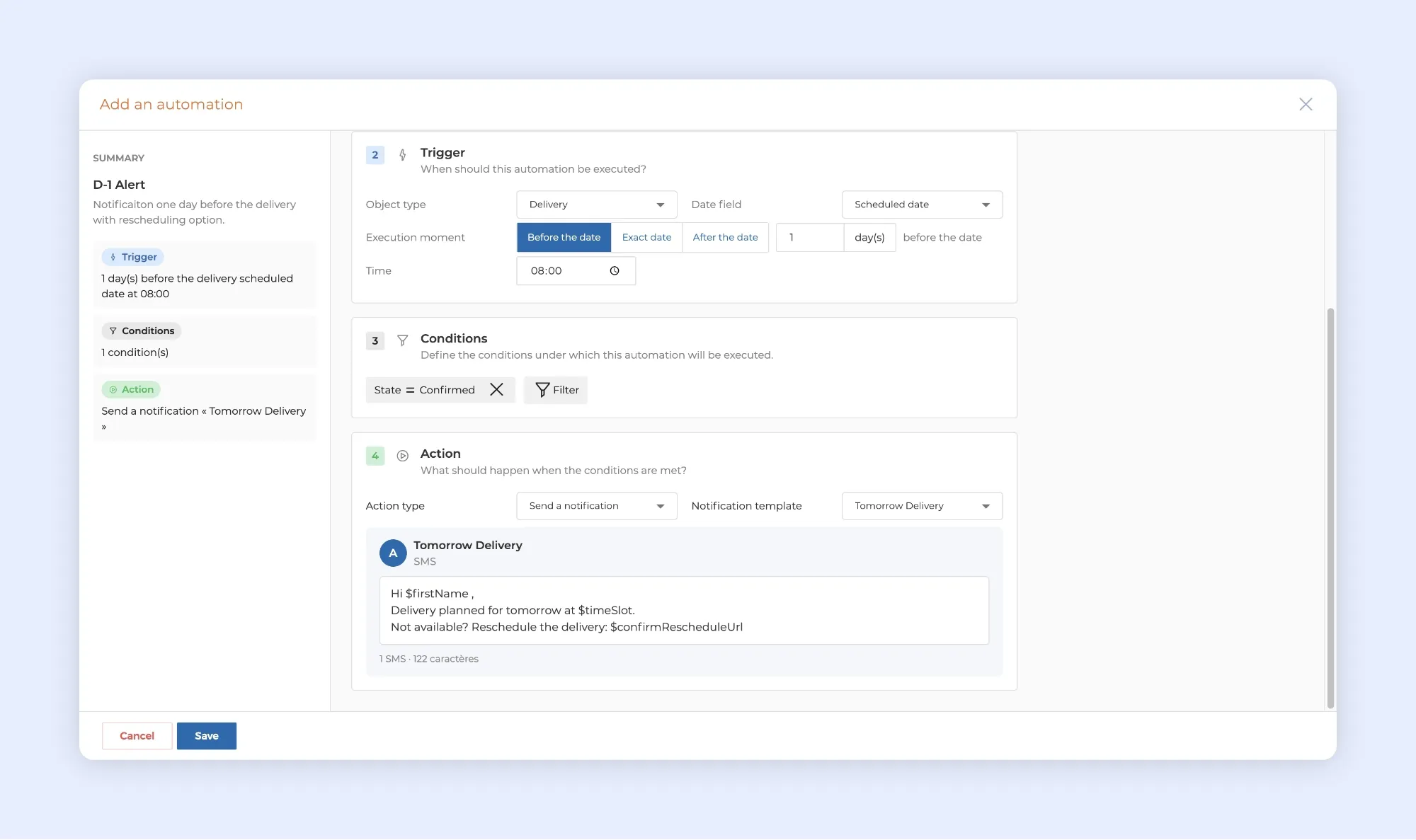
The principle is simple: choose a trigger, add conditions if needed, then define the action to be performed automatically.
For example, you can configure AntsRoute to automatically send an SMS reminder to a customer at 8:00 a.m. the day before a scheduled delivery, without any manual action from your team.
For now, the available actions focus on sending notifications. Additional types of actions will gradually be added to the automation system.
Create an automation
To access this new feature, go to:
Settings > Automations
You will find two tabs:
- Automations, to create and manage your rules;
- History, to review automations that have already been executed and their results.
To create a new rule, click + Automation.
Let’s take the example of an SMS reminder sent automatically one day before a delivery.
Start by entering the name of the automation and, if you wish, a description so that other users on your AntsRoute account can quickly understand its purpose.
Then define the trigger. In our example:
- Object type: Delivery
- Date field: Scheduled date
- Execution time: Before the date
- Delay: 1 day before
- Execution time of day: the time at which the SMS should be sent
You can then add conditions so that the automation only runs in specific situations, for example for a particular type of delivery.
The final step is to define the action to perform. In our example, select Send a notification, then choose the SMS template you want to use.
Once the automation has been activated and saved, AntsRoute takes care of the rest.
Monitor your automation executions
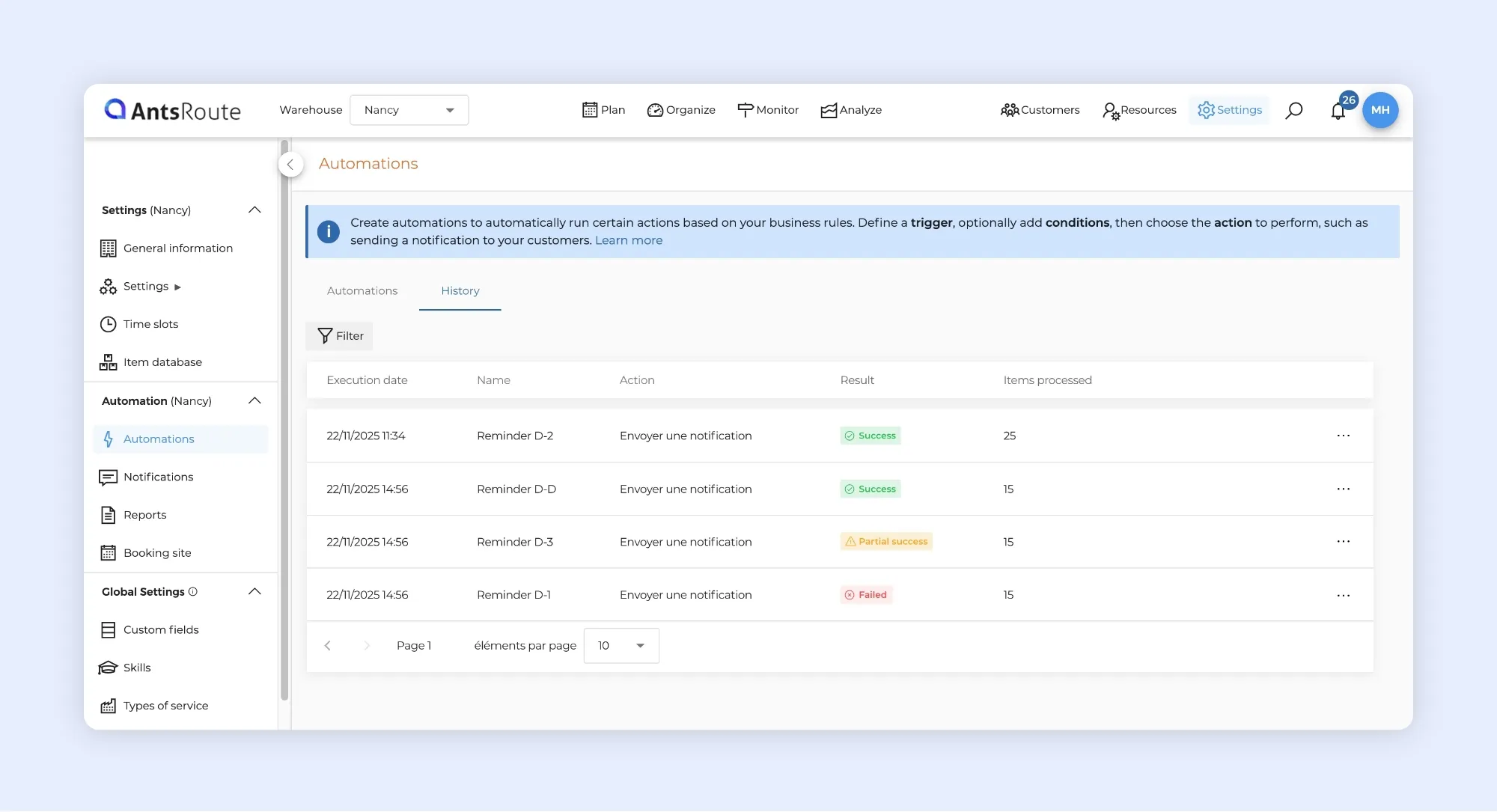
An execution history is also available so that you can keep track of the actions performed.
For each execution, you can view information such as:
- Execution date
- Automation name
- Action performed
- Result
- Number of items processed
Three results are possible: Success, Partial success, or Failure.
If an issue occurs, you can open the details of an execution and display only the items that encountered an error. The response returned helps you identify the cause of the failure.
This allows you to save time on repetitive tasks while maintaining full visibility over the actions automatically performed by AntsRoute.
➡️ To learn more about automations, read the dedicated article in our Help Center.
Monitor route progress from a new Agenda view
The Monitor module now includes a new view designed to make it easier to supervise your teams throughout the day: Agenda.
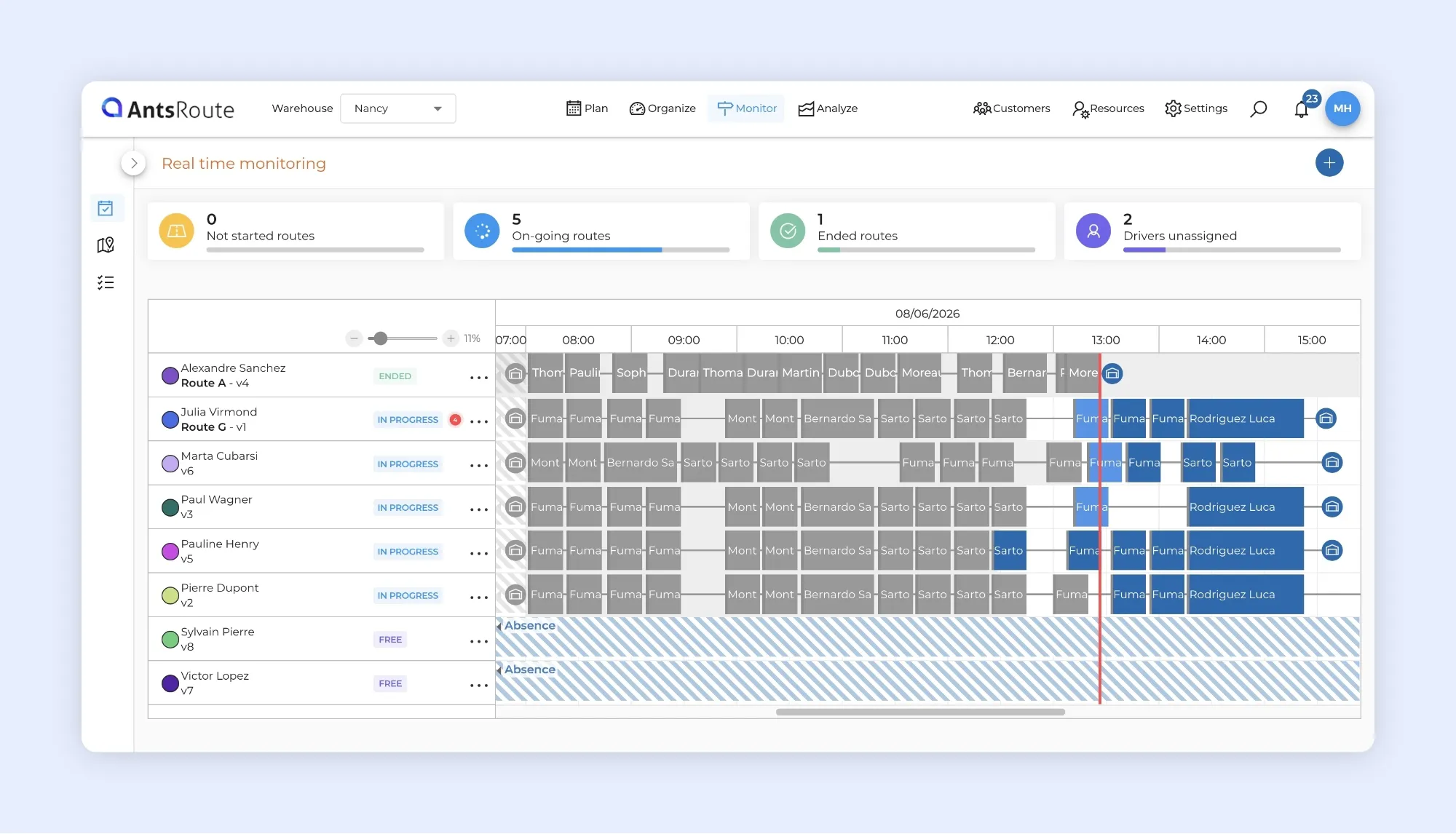
This view displays your agents’ routes on a timeline, allowing you to understand their progress at a glance.
To access it:
Monitor > Agenda
Each row corresponds to an agent and displays the different stops on their route throughout the day.
Instantly view route progress :
The appearance of each stop changes automatically as the agent validates it from the mobile app:
- Grey: completed stop
- Light blue: stop in progress
- Dark blue: upcoming stop
A vertical red line indicates the current time.
This allows you to quickly compare the progress of each route with the planned schedule and understand the current status of your teams in the field.
Cancelled stops also remain accessible. When a route includes one or more cancelled stops, the total is displayed next to the route status. Clicking this indicator displays the list of affected stops.
This new view complements the existing monitoring tools and gives operations managers a chronological overview of all routes, making it particularly useful for managing activity throughout the day.
➡️ To learn more about route monitoring, read our support article.
Collect information at the start and end of routes
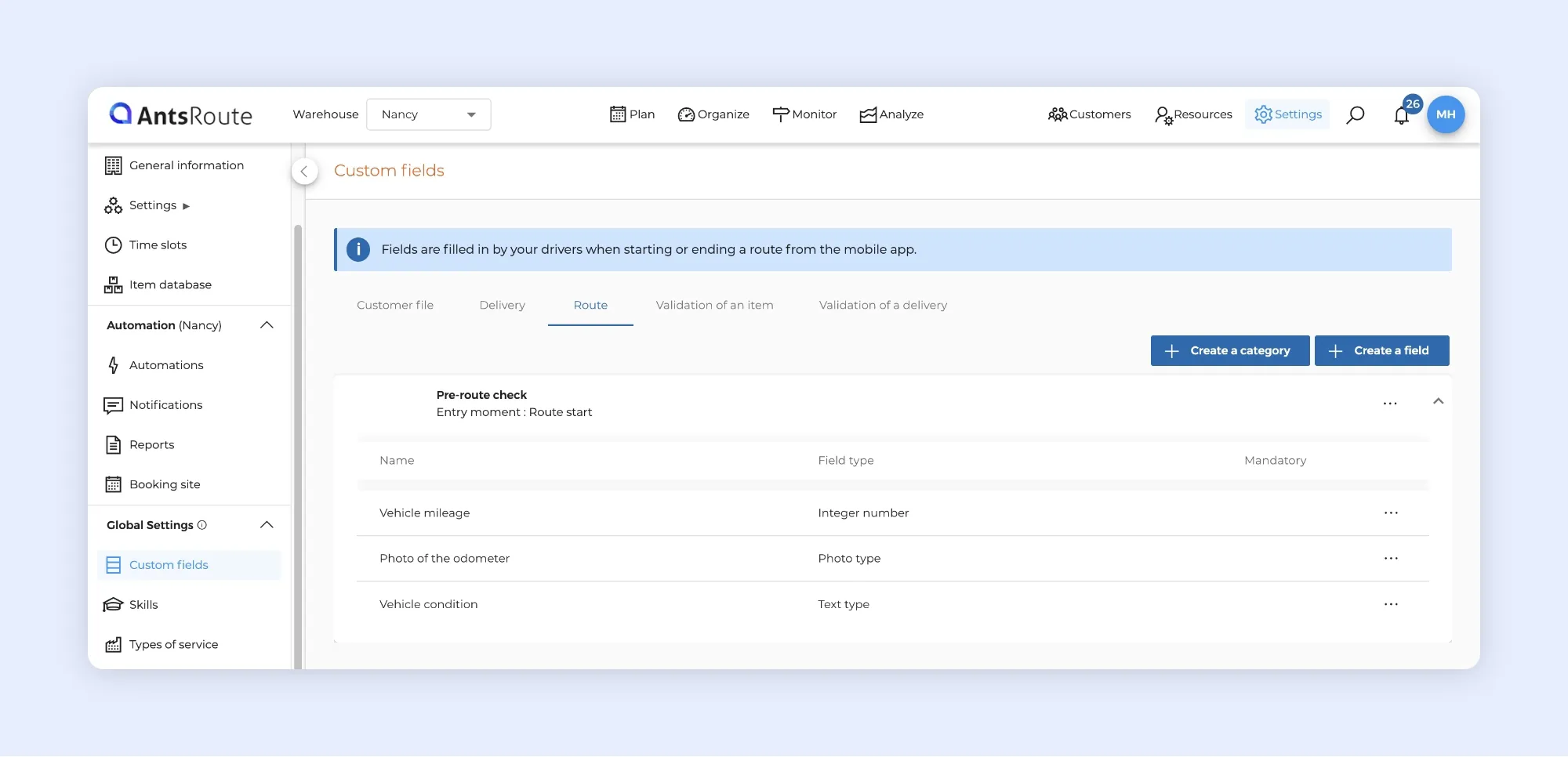
Custom fields are now available for routes.
You can now ask drivers to enter specific information directly from the mobile app, either when starting their route or when completing it.
This feature makes it easier to adapt AntsRoute to your business processes and reduces the need for separate forms or external tools to collect field information.
For example, you can request:
- Vehicle mileage
- A photo of the odometer
- Vehicle condition
- Confirmation that the required equipment is on board
- A pre-departure inspection checklist
- Information to be completed at the end of the day
Configure the information to collect
To create these fields, go to:
Settings > Custom fields > Routes
Start by creating a category, for example Pre-departure vehicle inspection.
For each category, you can choose when the information must be entered:
- Start of route
- End of route
You can then add the required fields to the category and specify whether they are mandatory or optional.
Good to know: the entry time is defined at category level. All fields within the same category will therefore be requested from the driver at the same time.
Information requested directly in the mobile app
Once the fields have been configured, AntsRoute automatically displays them to the driver at the appropriate time.
For example, you can require a checklist before a driver starts a route or ask them to enter the vehicle mileage when finishing their day.
If a field is marked as mandatory, the driver must complete it before they can continue with the validation process.
This new feature makes it easier to introduce operational checks and centralize more field information directly in AntsRoute.
➡️ To learn more about custom fields for routes, read our support article.
Set departure locations based on previous routes
Your drivers do not always finish their day at their usual departure location.
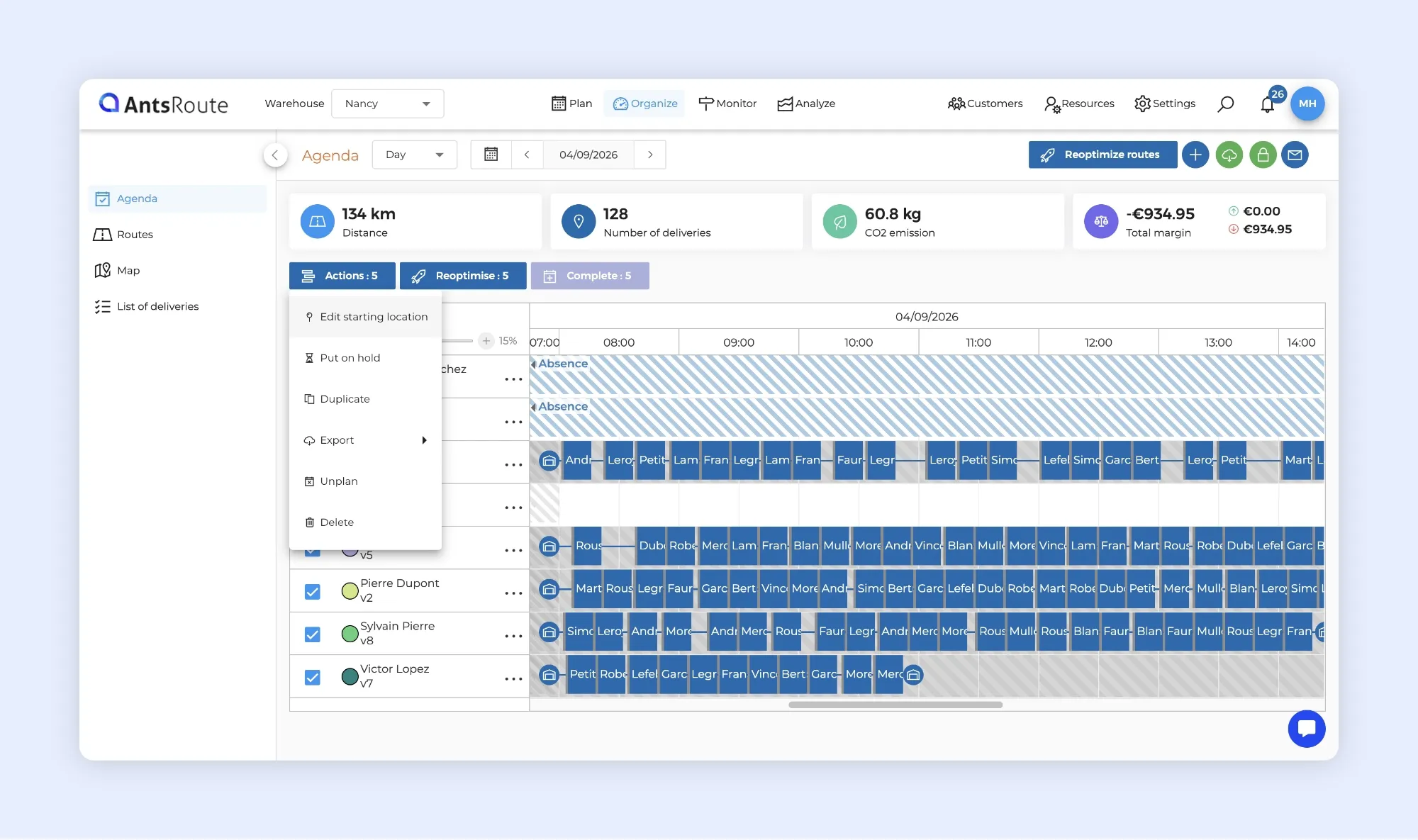
To better manage this type of organization, you can now set the departure locations of multiple routes based on the arrival locations of previous routes.
This feature is particularly useful when a driver finishes a route at a specific location and needs to depart from the same place on a future working day.
To use this feature:
Organize > Agenda > Select routes > Actions > Edit starting location
Then simply select a reference date.
For each selected route, AntsRoute retrieves the arrival location of the route completed by the driver on that date and uses it as the new departure location.
Good to know: if a driver did not have a route planned on the selected reference date, their departure location will not be changed.
If the routes for the new date had already been planned before making this change, remember to run the optimization again so that the new departure location is taken into account.
Easily identify specific departure locations:
When a departure location is based on the arrival location of a previous route, this information is also visible in the customer record under the Working hours, locations and skills tab.
A Specific departure label identifies the relevant days and indicates which route was used as the reference.
You can therefore immediately understand why the driver is departing from a location other than their usual address.
➡️ To view all the steps, read our support article about route departure locations.
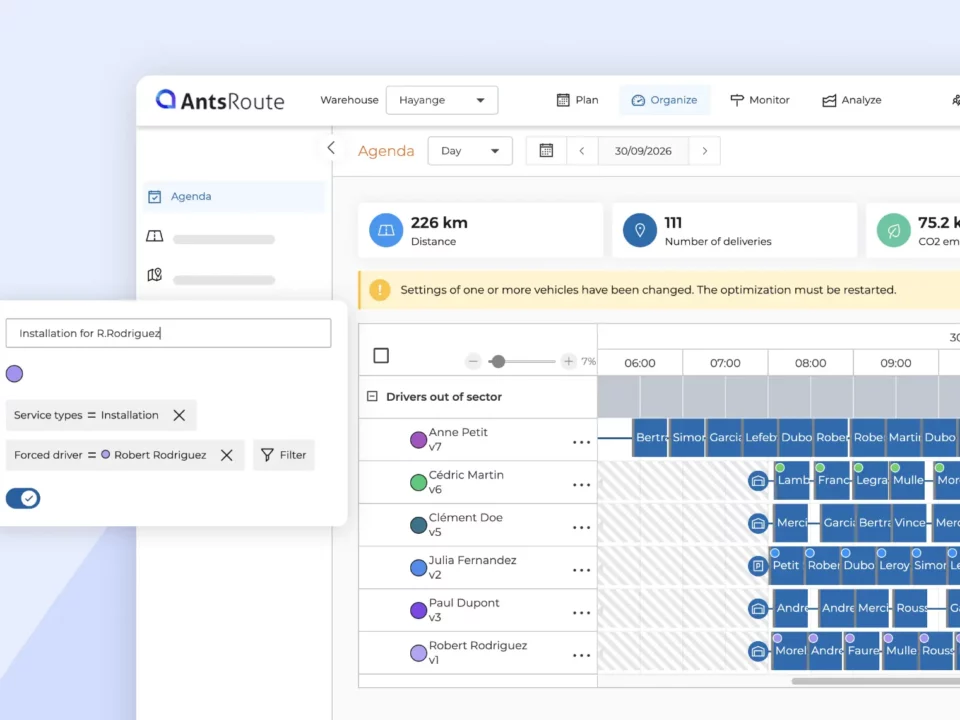
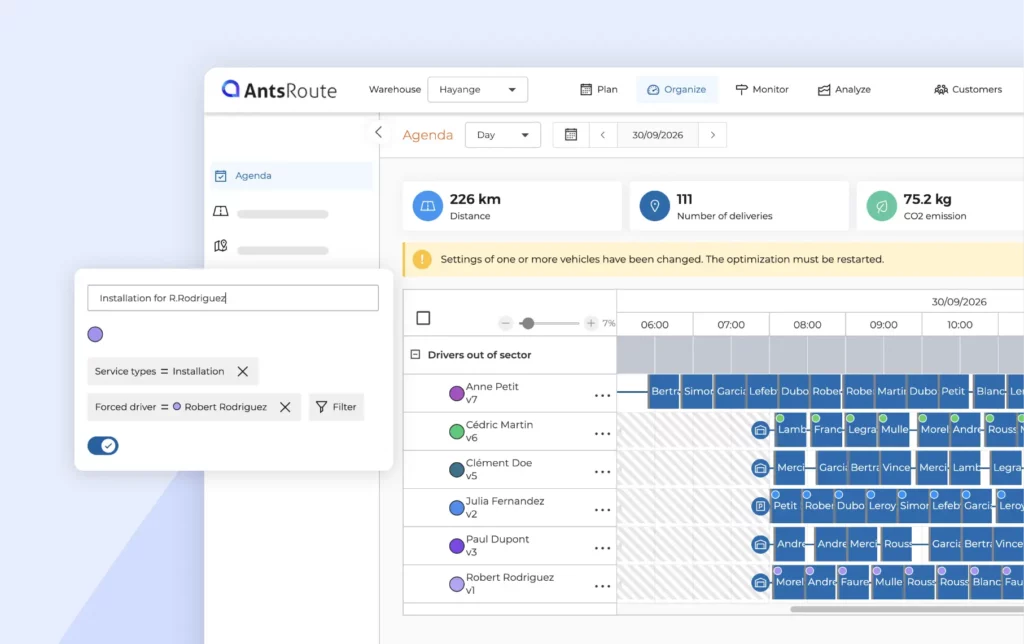
Prioritize jobs with a forced driver
A new prioritization criterion is now available in the jobs basket.
As a reminder, these criteria allow you to tell the optimization algorithm which jobs should be planned first.
Until now, two methods were available:
- Due date, used by default
- Service type
A third option is now available: Forced driver.
When this criterion is selected, AntsRoute prioritizes jobs that must be completed by a specific driver.
This option is particularly useful when certain visits absolutely require a particular field worker and you want to maximize the likelihood of those jobs being included in the schedule.
To activate it, go to:
Settings > Optimization > Prioritisation criterion for deliveries > Forced driver
Good to know: this criterion only applies when the driver is entered directly in the job details. A driver defined in the customer record is not taken into account for this prioritization criterion.
➡️ To learn more about prioritizing jobs in the basket, read our support article.
Allow customers to request an appointment reschedule
The AntsRoute booking site now offers even more flexibility for your customers.
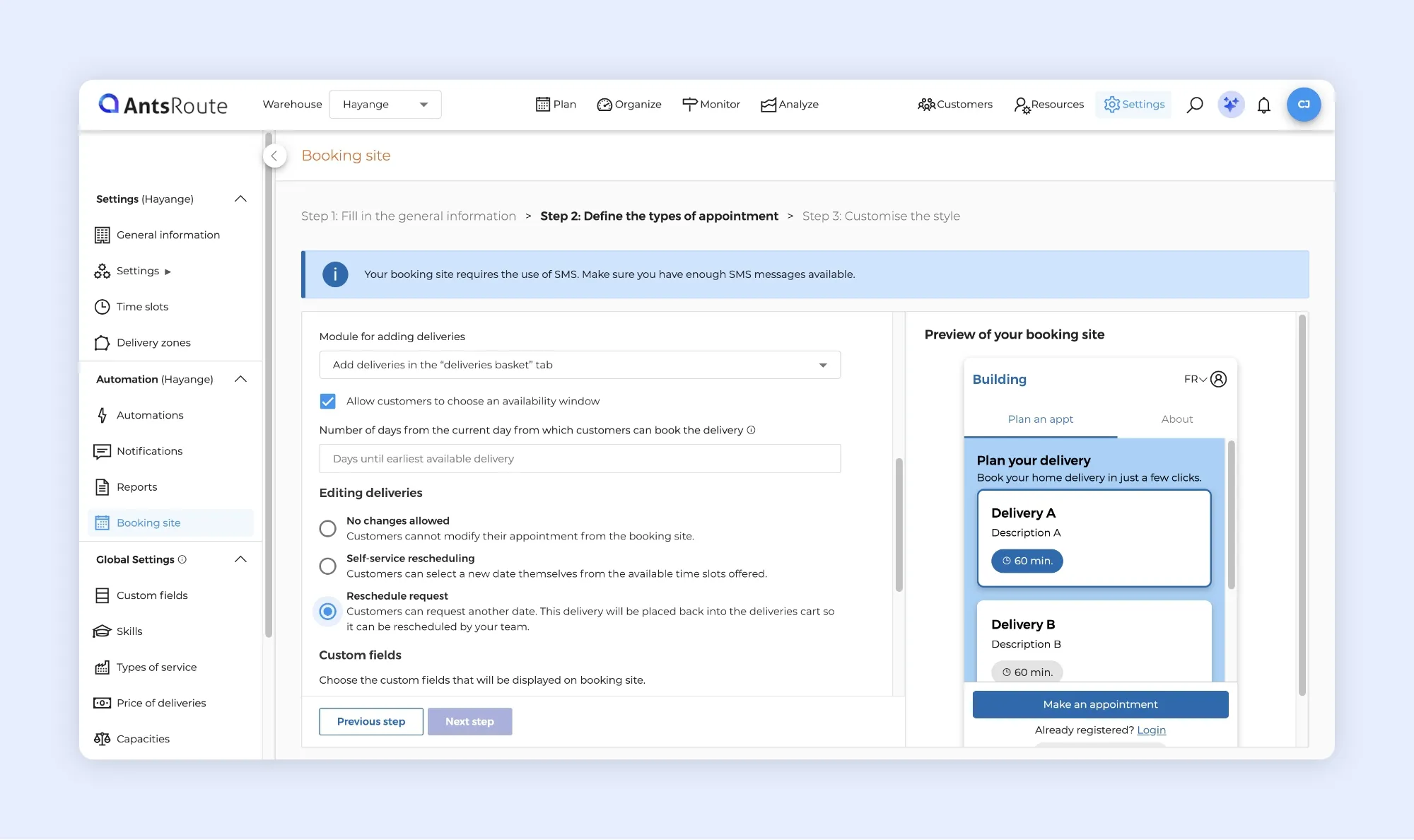
If you use the booking site to allow customers to schedule jobs or deliveries 24/7, with appointments being added to the basket, you can now offer them a new option: Reschedule request.
Until now, two options were available:
- No changes allowed: the customer cannot modify their appointment from the booking site.
- Self-service rescheduling: the customer selects a new date themselves from the available options.
You now have a third option:
- Reschedule request: the customer requests another date and the job is placed back in the basket so that your team can reschedule it.
From their account on the booking site, customers will then see a Request another date button.
This new option provides a useful compromise: more autonomy for customers while allowing your team to retain control over rescheduling.
It can also reduce the number of exchanges required to request a change of date without giving customers direct control over selecting a new time slot.
➡️ To learn more about the AntsRoute booking site, read our support article.
Simpler and more efficient webhook management
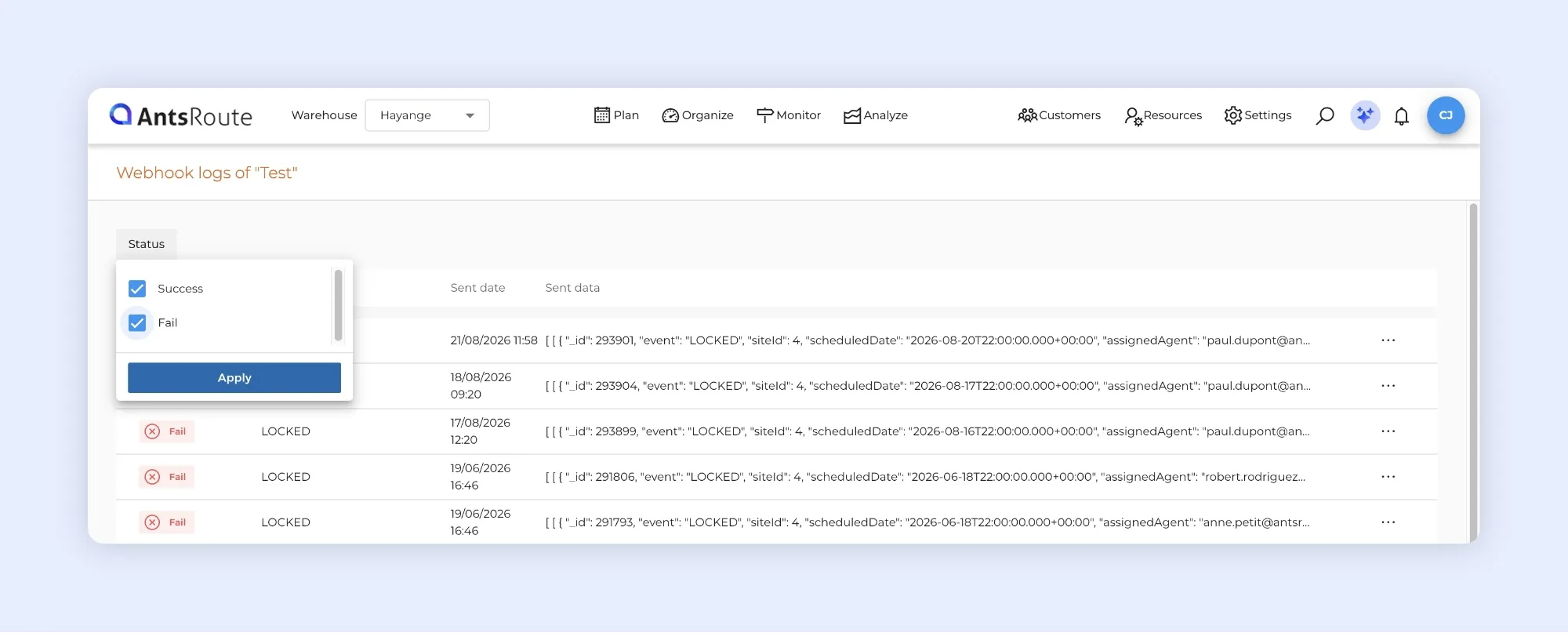
The webhook management interface has been updated to make it easier to monitor data exchanges between AntsRoute and your other applications.
The new log display improves readability and introduces several new filters.
You can now filter logs by:
- Status: success or failure
- Event: to isolate a specific event
- Send date
- Delivery ID
These filters make it much faster to locate specific information when a webhook contains a large number of logs.
For each transmission, a new panel allows you to view the data sent as well as the response returned by the receiving application, including the HTTP response code and error message.
If a transmission fails, this information makes it easier to identify the cause of the issue.
Once the problem has been fixed, simply click Resend to make another attempt.
A Copy button also allows you to retrieve the log information and easily share it with your technical team or the support team of the relevant application.
➡️ To learn more about configuring and monitoring webhooks, read our support article.
View absences directly in the mobile app schedule
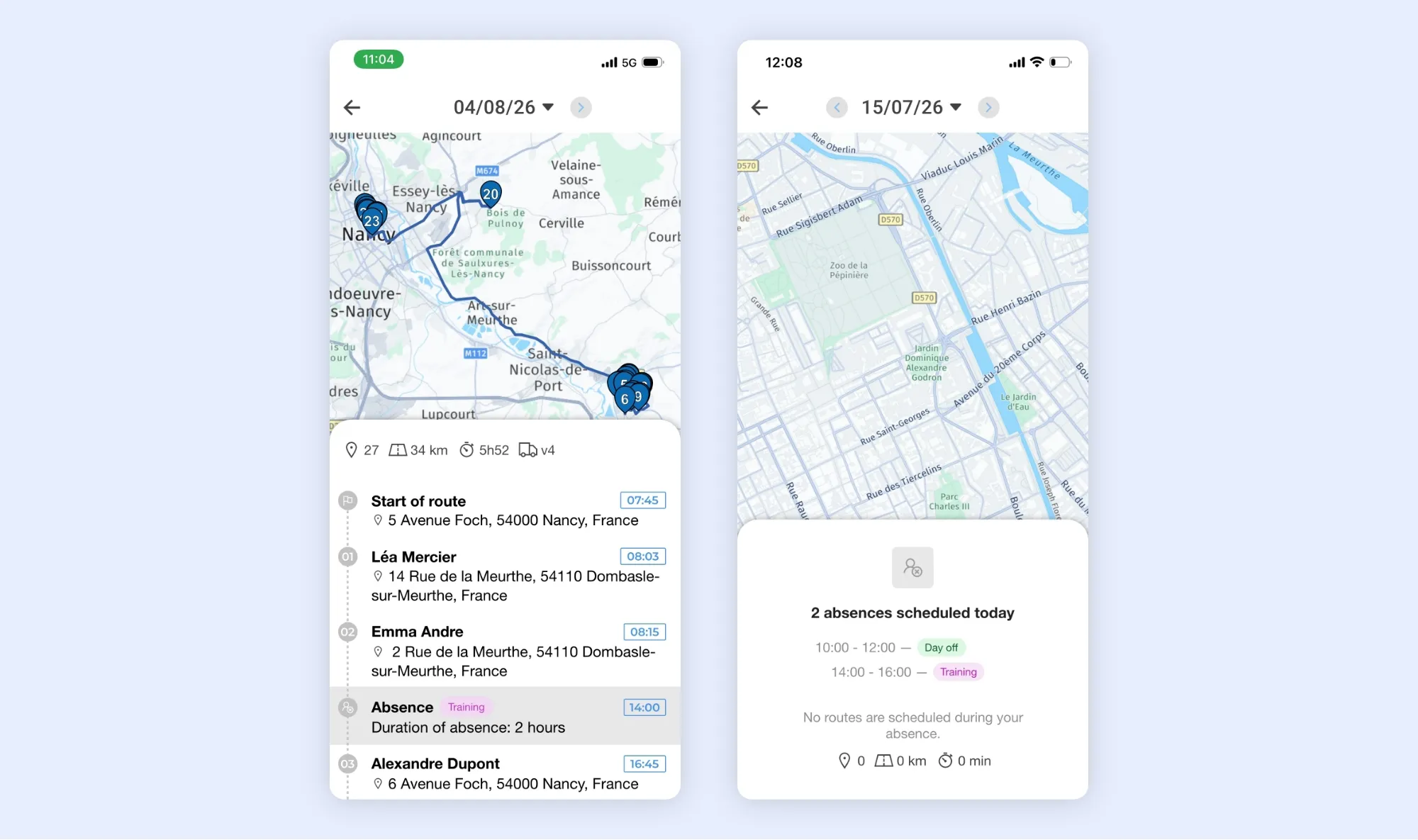
The AntsRoute mobile app schedule is becoming even more comprehensive.
As a reminder, when this option is enabled in the settings, your field workers can view their schedule for upcoming days directly from the mobile app.
Now, their absences are also displayed directly in this schedule.
Each absence appears as a card whose color matches the absence type configured in the AntsRoute web interface. This makes it easier for field workers to identify the type of absence and get a more complete overview of their schedule.
Depending on the schedule for that day, two situations are possible:
- No route is planned: only the absence is displayed in the schedule.
- A route is planned on the same day: the absence appears in the list alongside the route stops.
This improvement allows field workers to view both their routes and absences in one place, without needing to check their schedule with their manager.
Good to know: the color displayed in the mobile app depends on the absence type configured in the AntsRoute web interface.
➡️ To learn more about viewing schedules from the mobile app, read our support article.
Other improvements
Filter your jobs more precisely using custom fields: new options are now available in the filters of job tables. For list-type custom fields, you can select None. For text-type custom fields, the Empty option allows you to identify jobs where no value has been entered. For example, you can display all deliveries where the “Order number” field is empty.
Access the report from the “Delivery completed” webhook: the URL used to download the report is now included in the data sent for this event.
More rigorous item validation on mobile: by default, the Item delivered in conformity status is preselected during item validation to save drivers time. Now, when at least one mandatory custom field is associated with item validation, no status is selected by default. The driver must therefore explicitly select the appropriate status before continuing.
A more consistent interface in Route Report: the Duplicate and Export actions are now grouped under a single Actions button. This update simplifies the interface and makes its behavior consistent with the Organize module.
A redesigned interface for notification templates and reports: the configuration pages for these templates have been redesigned to improve readability and provide a better user experience.
Customer Report is changing: the dedicated Customer Report page has been removed. The same information remains available from Analyze > Delivery Report by simply applying a filter for the relevant customer. To learn more, read our support article.
Any questions? Our support team is available via chat from your AntsRoute account or by email.
WRITTEN BY

Marie Henrion
At AntsRoute, Marie has been the marketing manager since 2018. With a focus on last-mile logistics, she produces content that simplifies complex topics such as route optimization, the ecological transition, and customer satisfaction.
Optimise your Routes Today
Free 7-day trial | No credit card required
Contenu
- Automate recurring actions in AntsRoute
- Create an automation
- Monitor your automation executions
- Monitor route progress from a new Agenda view
- Collect information at the start and end of routes
- Configure the information to collect
- Information requested directly in the mobile app
- Set departure locations based on previous routes
- Prioritize jobs with a forced driver
- Allow customers to request an appointment reschedule
- Simpler and more efficient webhook management
- View absences directly in the mobile app schedule
- Other improvements
- Optimise your Routes Today