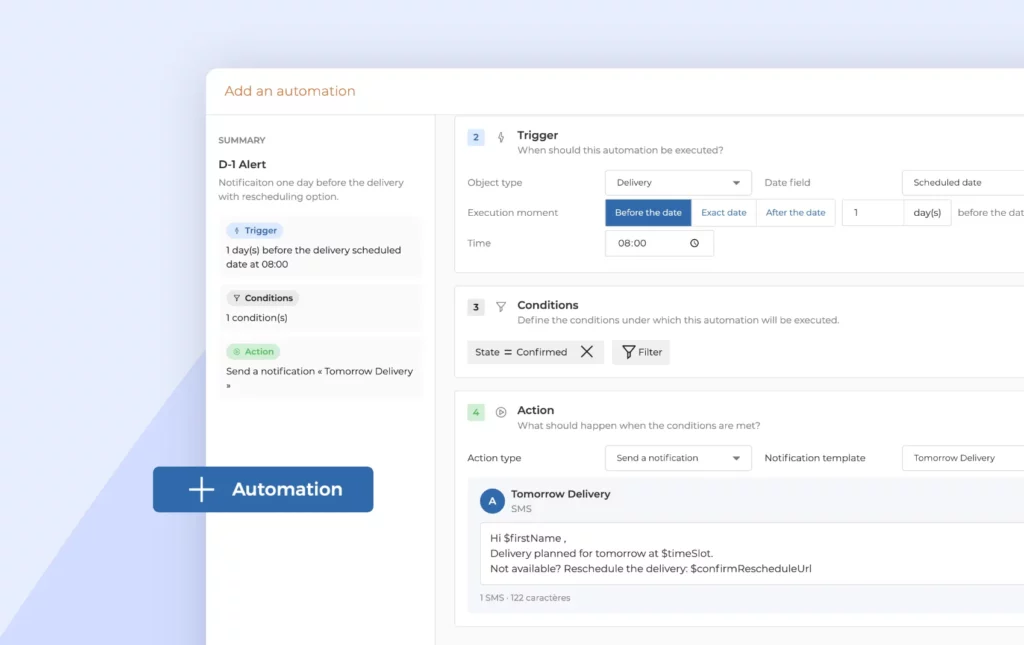
November 2026: What’s new in AntsRoute?
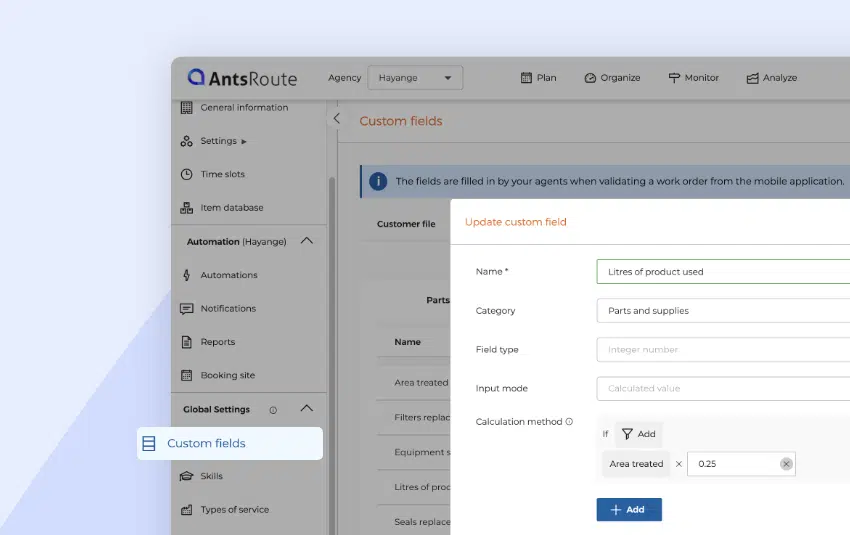
Blog > Product updates > November 2026: What’s new in AntsRoute?
November 2026: What’s new in AntsRoute?
Published on 18 November 2026 • Reading time: 7 min read
This month, custom fields take a step forward: a number field can now be calculated automatically from other fields, and a new field type lets you scan a barcode. You can also confirm routes in bulk, and see attachments, proofs and photos directly in your order tables.
Out in the field, the mobile app gets a dark mode and keeps instructions visible throughout the order. Finally, the Analyse module becomes more flexible: you can unlock a past route and view today’s routes.
In this article:
- Automatically calculate the value of a number field
- Scan barcodes in your custom fields
- Confirm your routes in two clicks
- See more information in your order tables
- Assign a scheduled order to an agent without unscheduling it
- Mobile app: dark mode and instructions always visible
- Analyse module: more flexibility in the history
- Other new features
Automatically calculate the value of a number field
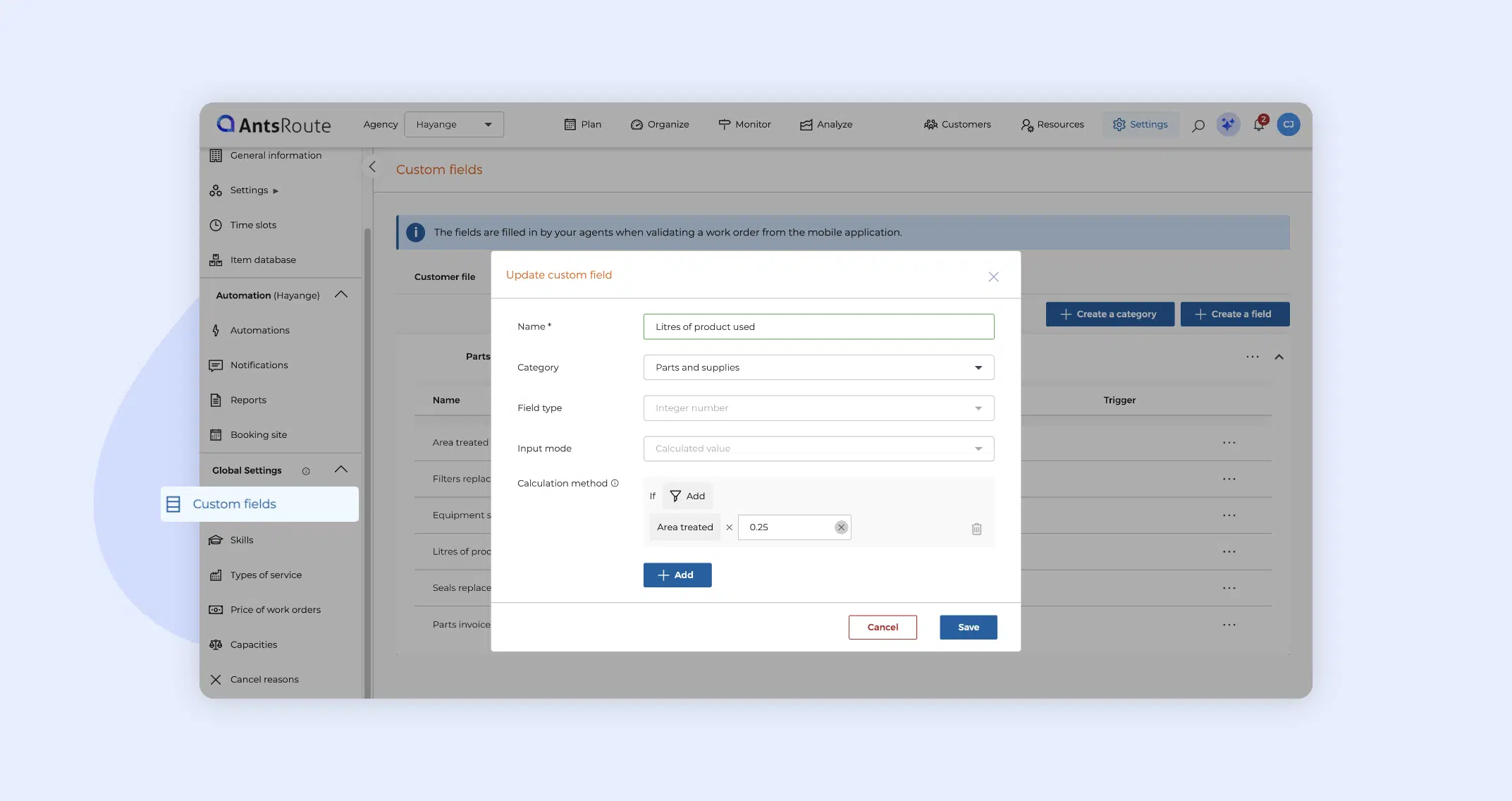
Do you work out a volume, a weight or a total quantity by hand from other information on the order? Number custom fields now offer the Calculated value input mode. The value is calculated automatically every time the order is saved, using the calculation method you have defined.
Create a calculated field
The Calculated value mode is available for order and order validation custom fields.
- Create a custom field and choose the Integer number field field type.
- Under Input mode, select Calculated value.
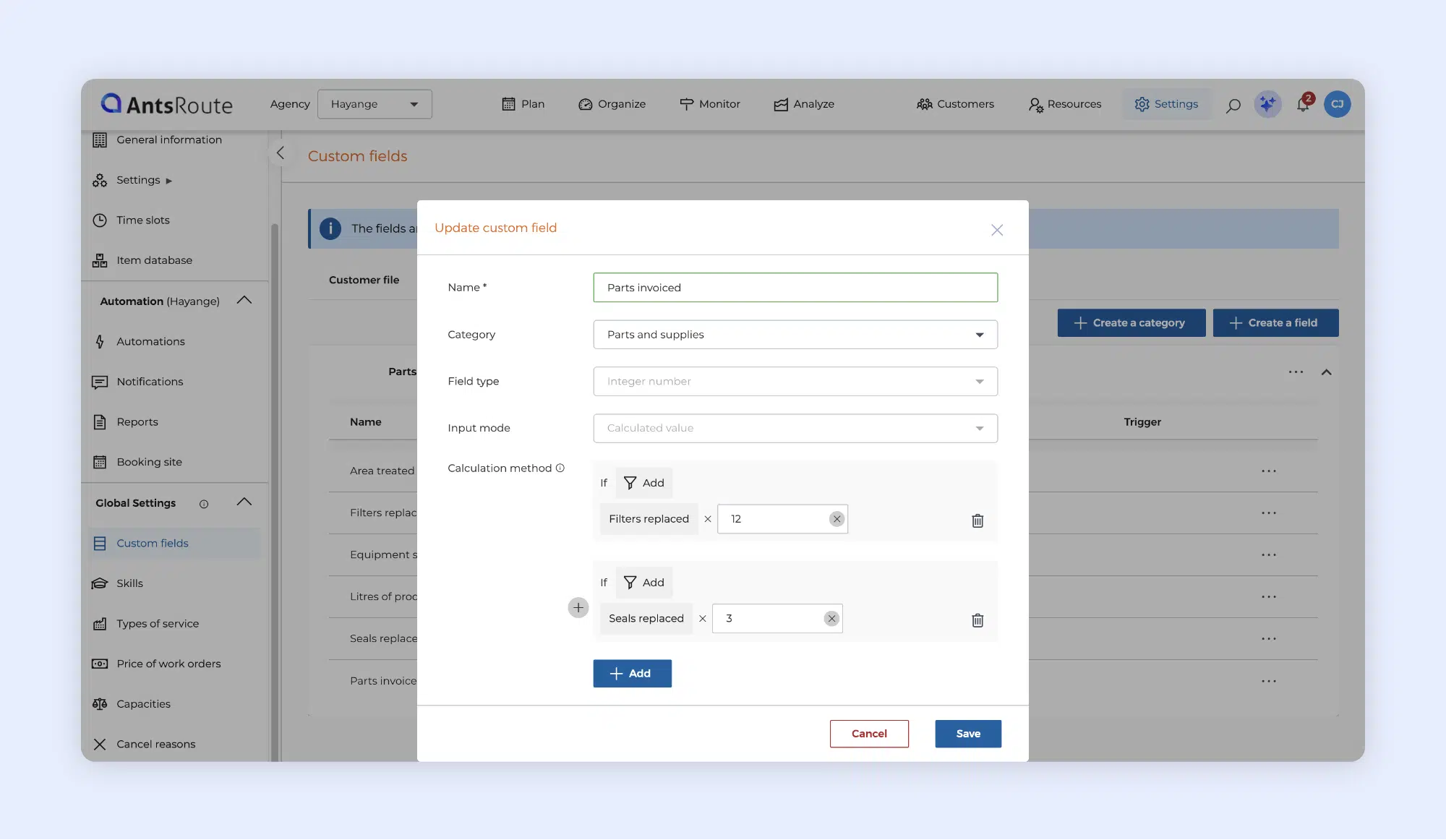
- Under Calculation method, select the two items to multiply on the line: a constant or a number field.
- To add a line, click + Add. The field’s value is the sum of all the lines.
- To apply a line only in certain cases, click Add next to ‘If’ and set a condition.
- Click Save.
The calculation method works in the same way as the custom price calculation, up to a maximum of 50 lines.
☝️ Any custom field that is not private can be used in the calculation, including fields with a trigger.
How the value is calculated
If a value used in the calculation is empty, the field has no value. The same applies if a field with a trigger has not been triggered.
If a value used in the calculation is changed later, even after the order has been completed, the field is recalculated automatically.
Find the value wherever you need it
The calculated value appears in:
- PDF reports
- notifications
- webhooks
- exports.
You can also filter and sort your orders on this field.
In the mobile app, agents see a live preview of the value as they fill in the fields, even without a network connection. The preview also works when they edit an order that has already been validated.
Good to know
- A calculated field can be used in your custom price calculation, but not in another calculated field.
- A calculated field cannot have a trigger.
- A field used in a formula cannot be deleted.
- If a value is sent for a calculated field via the API, an import or a bulk edit, it is ignored.
➡️ To find out more about calculated custom fields, see our support article.
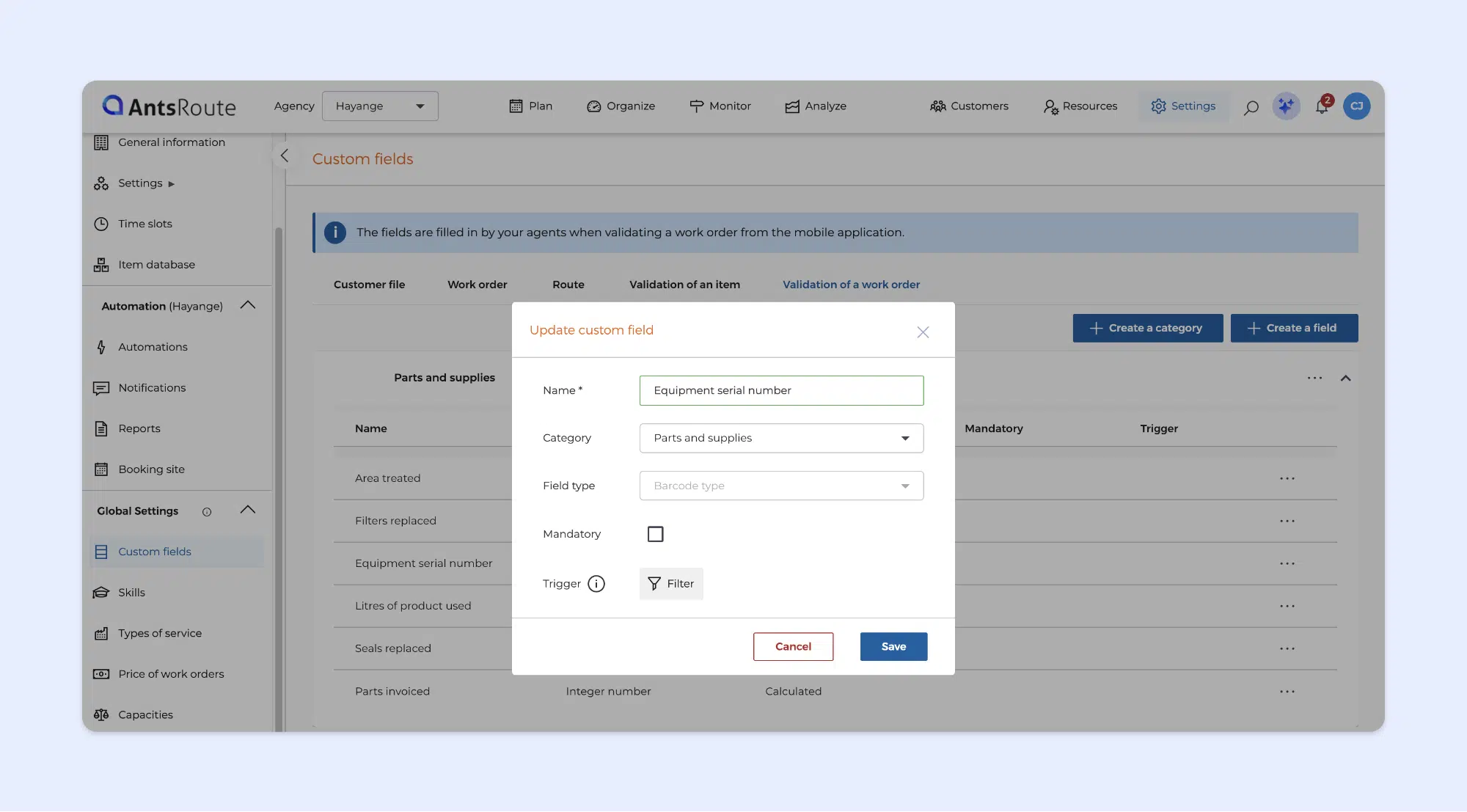
Scan barcodes in your custom fields
Do your drivers need to record a serial number, an equipment reference or a container code? With the new barcode custom field type, they scan it directly from the mobile app, with no risk of typing errors.
Where to use the barcode field
The barcode field is available:
- when validating an order
- at the start or end of a route
- when validating items.
On the driver’s side
When validating, the driver taps Scan a barcode and points their phone’s camera at the code. If the code is damaged or unreadable, they can also enter it manually.
☝️ Each field holds a single barcode. To record several, create one field per code.
➡️ To find out more about custom fields, see our support article.
Confirm your routes in two clicks
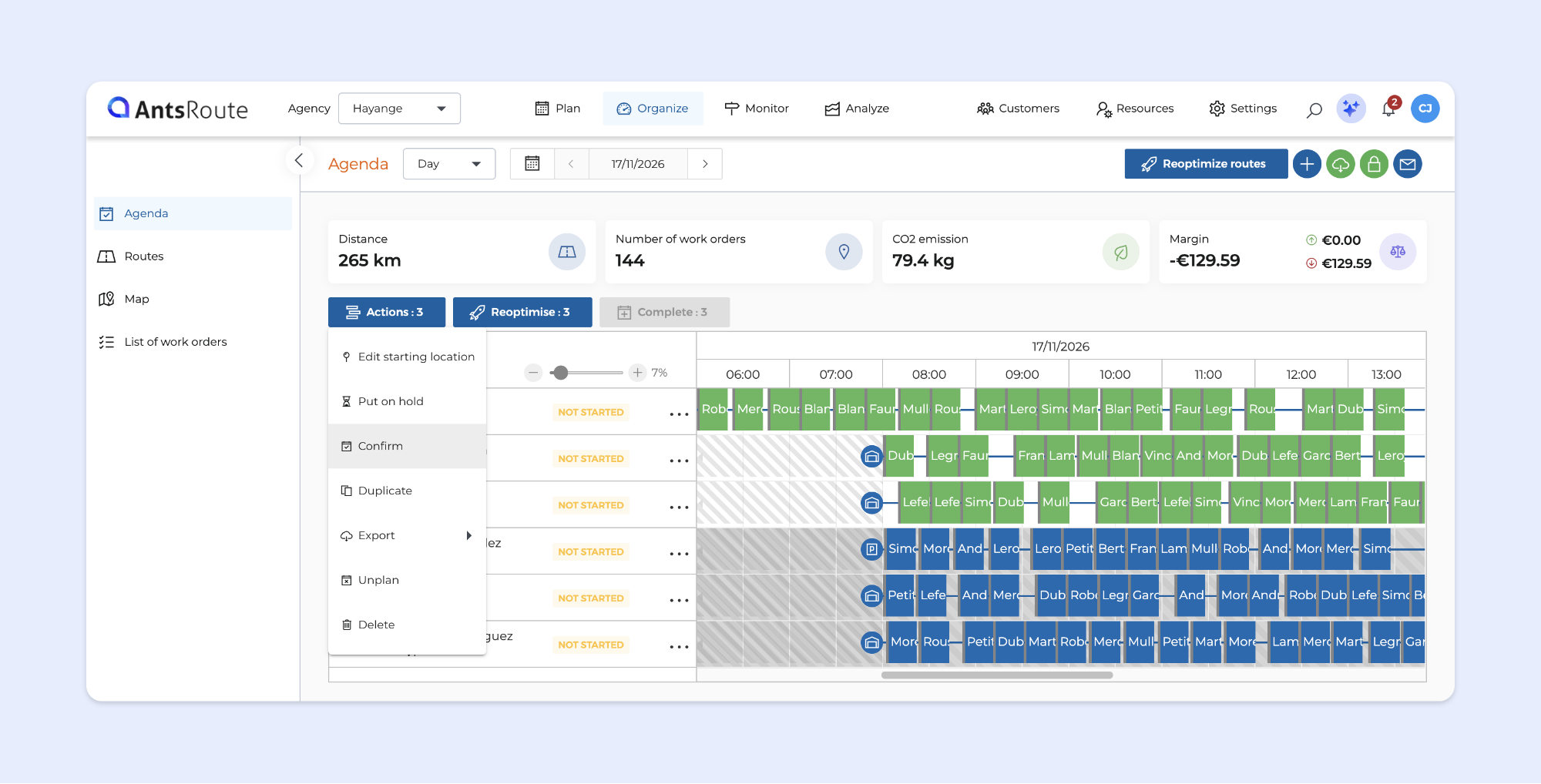
Until now, you could put a route on hold, but to confirm its orders you had to go through them one by one. You can now confirm one or more routes at once: all their orders switch to the ‘Confirmed’ status.
To confirm routes:
- Open the Agenda or the Route tab.
- Tick the routes you want to confirm.
- Click Actions > Confirm.
☝️ You can cancel the confirmation in the same way, from the Actions menu.
➡️ To find out more about confirming routes, see our support article.
See more information in your order tables
View package barcodes
In the Packages column of the order list, you could previously only see the number of parcels for each status: compliant, compliant with barcode scan, or with anomalies. Now, hover over these quantities to see the list of associated barcodes in a tooltip.
View attachments, proofs and photos without opening each order
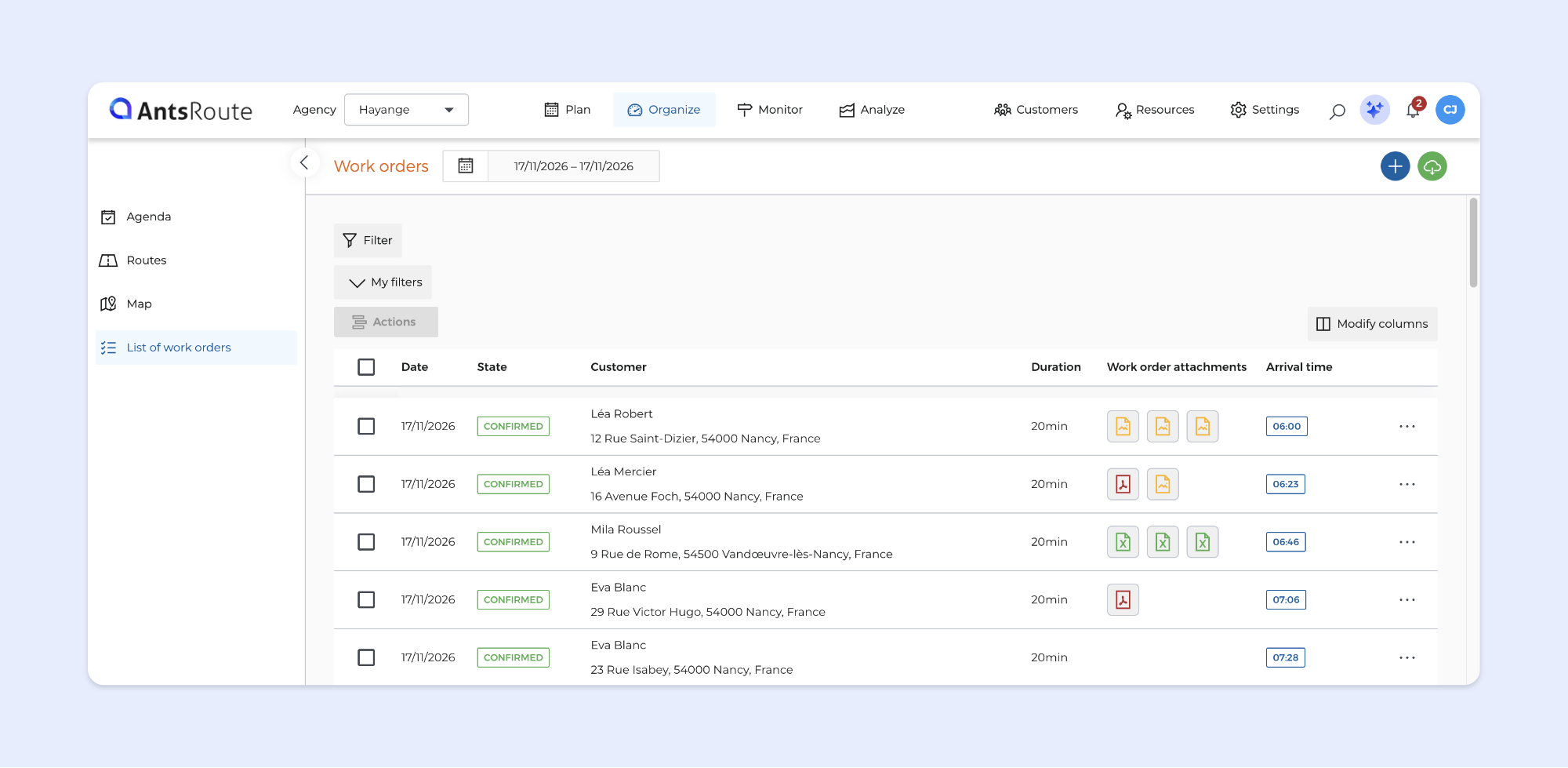
To check a proof of delivery or a photo taken by an agent, you previously had to open each order’s details. These files now appear directly in your tables, in new columns:
- attachments
- proofs
- photo custom fields.
Just as in the order details, each file is shown as an icon. Hover over it to see the file name, and click it to open a preview.
These columns are available in:
- the order list, in Organise and Monitor
- the basket
- the order history
- cancelled appointments
- the appointment tabs on the customer page.
To display them, add them from the table’s column selector.
Filter orders with or without files
Each new column has its own filter, with two options: ‘is empty’ or ‘is not empty’. You can instantly spot the orders that are missing a proof or an attachment. This filter is available in the order list, the basket, the order history and cancelled appointments.
Assign a planned order to an agent without unscheduling it
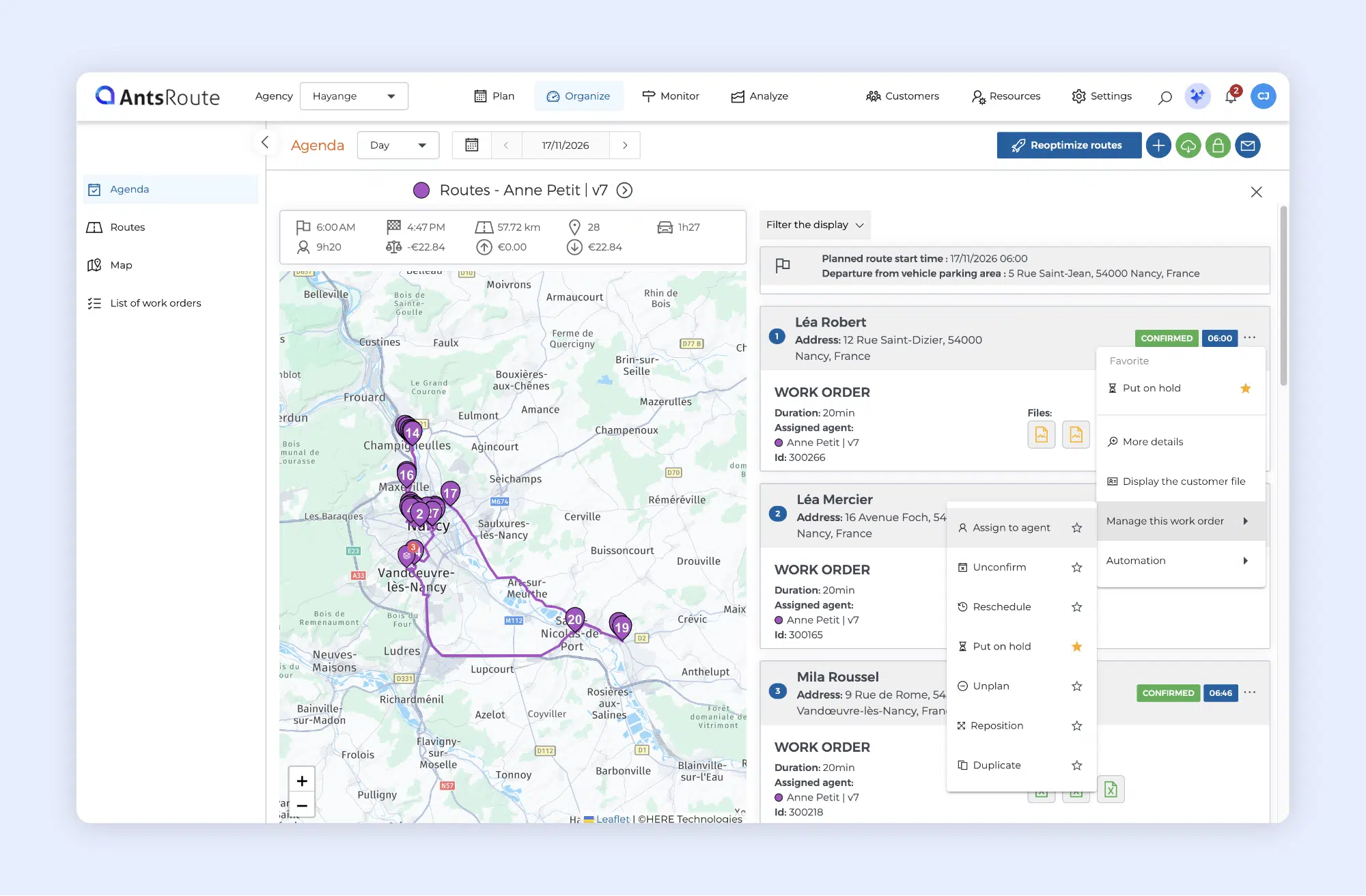
The Assign to an agent option used to be available only for unassigned orders. To hand an already planned order over to another agent, you first had to unschedule it.
This option is now also available for scheduled orders, saving you a step every time you reassign one.
➡️ To find out more about assigning orders, see our support article.
Mobile app: dark mode and instructions always visible
Switch the app to dark mode
The mobile app has a new theme and now offers a dark mode.
To turn it on:
- Open the Menu.
- Go to Settings > Dark mode.
- Turn on the toggle.
➡️ To find out more about dark mode, see our support article.
Reread the instructions of an order in progress or completed
Until now, an order’s instructions were only visible in the app until the order started. Once it was in progress or completed, the agent could no longer see them.
Instructions now remain visible in the details of orders in progress and completed orders, so agents can refer to them at any time.
Analyse module: more flexibility in the history
View today’s routes
The route history used to show past routes only. You can now select today’s date to view the current day’s routes as well.
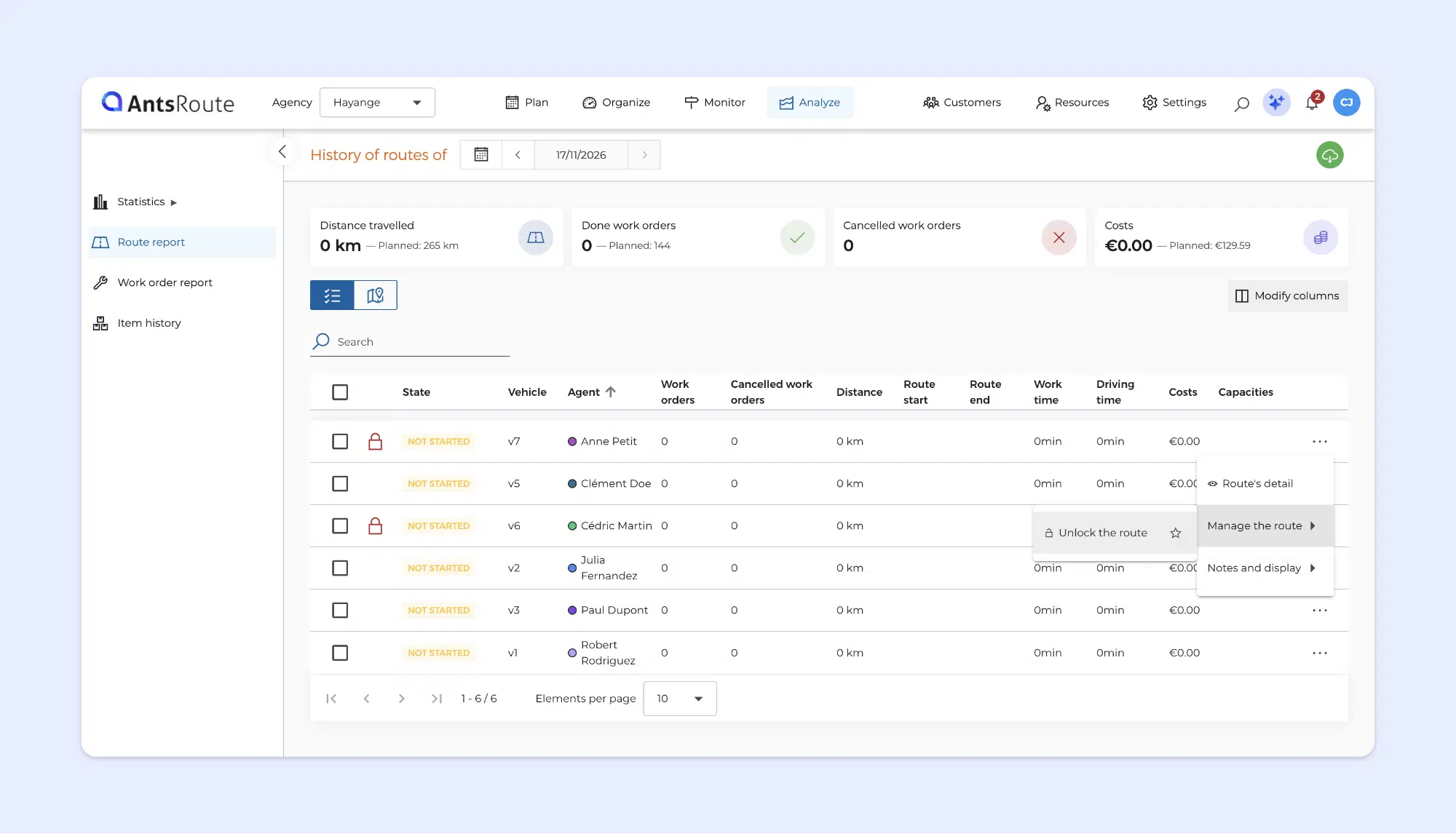
Unlock a past route
A locked route could not be unlocked from the Analyse module. This is now possible, so you can take action on its orders again.
To unlock a route:
- In Analyse, open the Route report.
- Find the route you want to unlock.
- Click … > Manage route > Unlock route.
☝️ Routes are unlocked one at a time.
➡️ To find out more about locking routes, see our support article.
Other new features
Edit the comment on a past customer absence. As was already the case for agents, you can edit the comment on a customer absence, even once it has passed. Go to Customers, open the customer page, then the Absences tab. Find the absence and click … > Edit.
Harmonised indicators. Indicator cards now have the same layout in Plan, Organise, Monitor, Analyse and automations. They are easier to read, and you will find your way around from one module to the next.
Loading and unloading in the package list. Like the item list, the Package list table now offers loading/unloading and loading/unloading time columns.
Webhooks now include the time slot. Webhooks triggered when an order is confirmed or put on hold now also send its time slot.
Any questions about these new features? Our support team is on hand via the chat built into AntsRoute or by email.
WRITTEN BY

Marie Henrion
At AntsRoute, Marie has been the marketing manager since 2018. With a focus on last-mile logistics, she produces content that simplifies complex topics such as route optimization, the ecological transition, and customer satisfaction.
Optimise your Routes Today
Free 7-day trial | No credit card required
Contenu
- Automatically calculate the value of a number field
- Create a calculated field
- How the value is calculated
- Find the value wherever you need it
- Scan barcodes in your custom fields
- Where to use the barcode field
- On the driver’s side
- Confirm your routes in two clicks
- See more information in your order tables
- View package barcodes
- View attachments, proofs and photos without opening each order
- Assign a planned order to an agent without unscheduling it
- Mobile app: dark mode and instructions always visible
- Switch the app to dark mode
- Reread the instructions of an order in progress or completed
- Analyse module: more flexibility in the history
- View today’s routes
- Unlock a past route
- Other new features
- Optimise your Routes Today