Route Optimization with Google Maps: What Is Possible in 2026
Blog > Route optimisation > Route Optimization with Google Maps: What Is Possible in 2026
Route Optimization with Google Maps: What Is Possible in 2026
Published on 9 December 2025 • Reading time: 12 min read
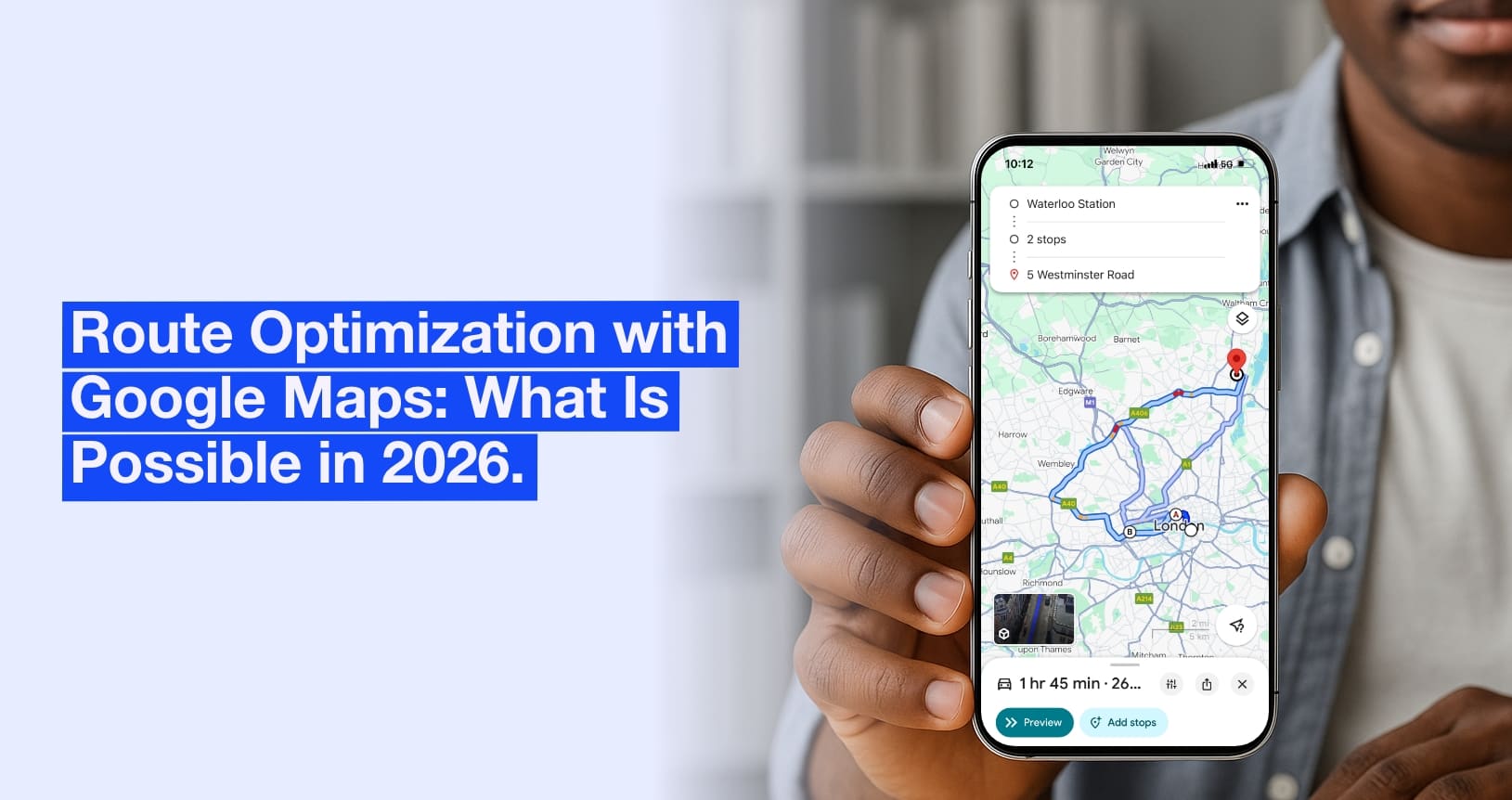
Today, with the rise of deliveries and in-home services, properly organizing routes has become essential. Driving fewer kilometers, arriving on time to customers, and handling more requests each day all depend primarily on efficient route planning.
Naturally, many professionals start with a tool they already know: Google Maps. Simple, free, and accessible, it provides a quick way to create a route. But is it truly suitable for professional use? Can we really talk about route optimization with Google Maps?
In this complete guide, updated for 2026, we will:
- explain what Google Maps can do (and cannot do),
- provide a step-by-step guide to optimizing a route with this tool,
- show its limitations for professional use,
- illustrate potential gains with concrete examples,
- compare Google Maps with optimization software,
- answer the question: when should you switch to an optimization solution?
☝️ Key takeaways
- Google Maps remains suitable for small routes, up to 10 stops, with reliable navigation and very accurate traffic data.
- No automatic optimization in 2026: the order of stops must be organized manually, with no handling of business constraints (time windows, durations, capacities, etc.).
- Dedicated software becomes necessary once you reach around ten stops, if you have multiple vehicles, or if you are dealing with complex constraints.
Google Maps for Route Optimization: What the Tool Can Actually Do
Let’s start with the positive: Google Maps remains one of the best navigation tools in the world. For a simple route, meaning a few addresses, one driver, and no constraints, the tool can be sufficient.
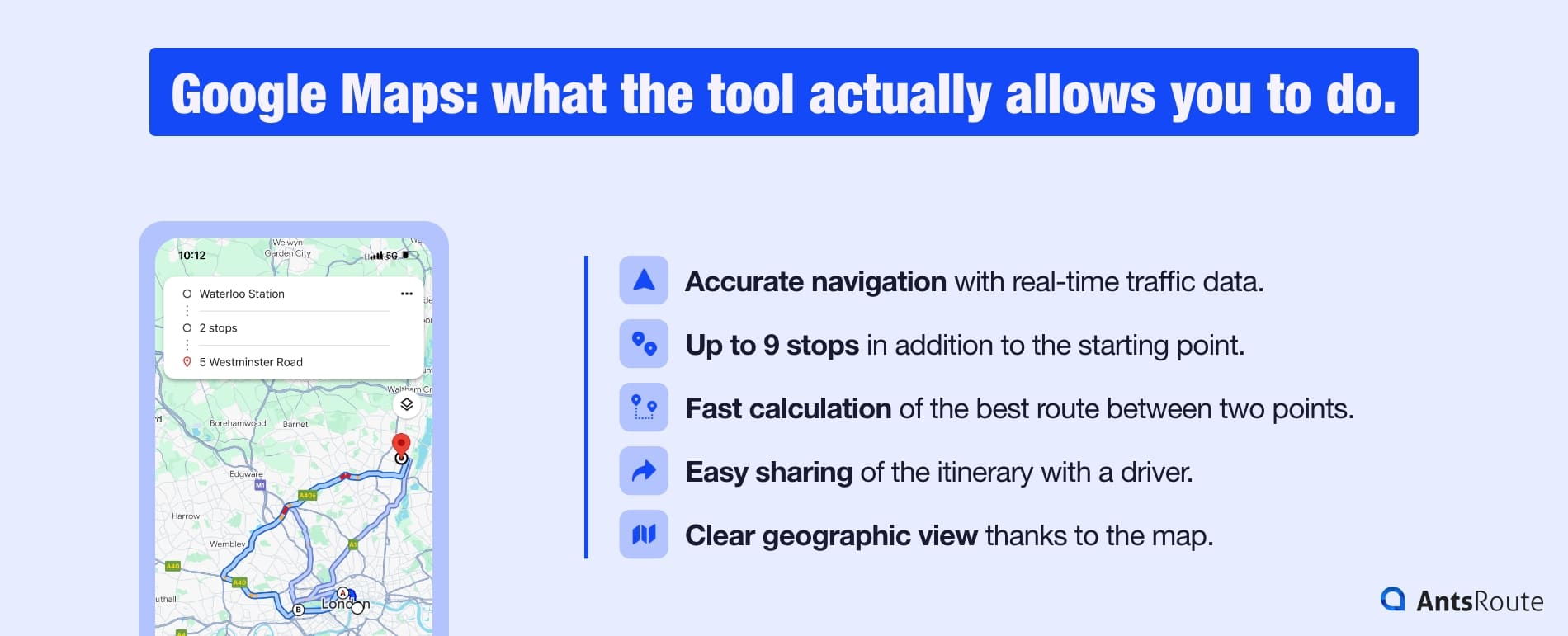
Google Maps: the main features of the tool.
What Google Maps does very well:
- Accurate navigation with real-time traffic data.
- Up to 9 stops in addition to the starting point.
- Fast calculation of the best route between two points.
- Easy sharing of the itinerary with a driver.
- Clear geographic view thanks to the map.
For a route with 5 to 10 stops, the tool can work perfectly well. But as soon as you move to a more professional volume, the limitations appear very quickly.
Step-by-Step Guide: How to Optimize Your Routes with Google Maps
Even though Google Maps is not an optimization tool, you can still get the most out of it with careful organization. Here is an 8-step practical guide.
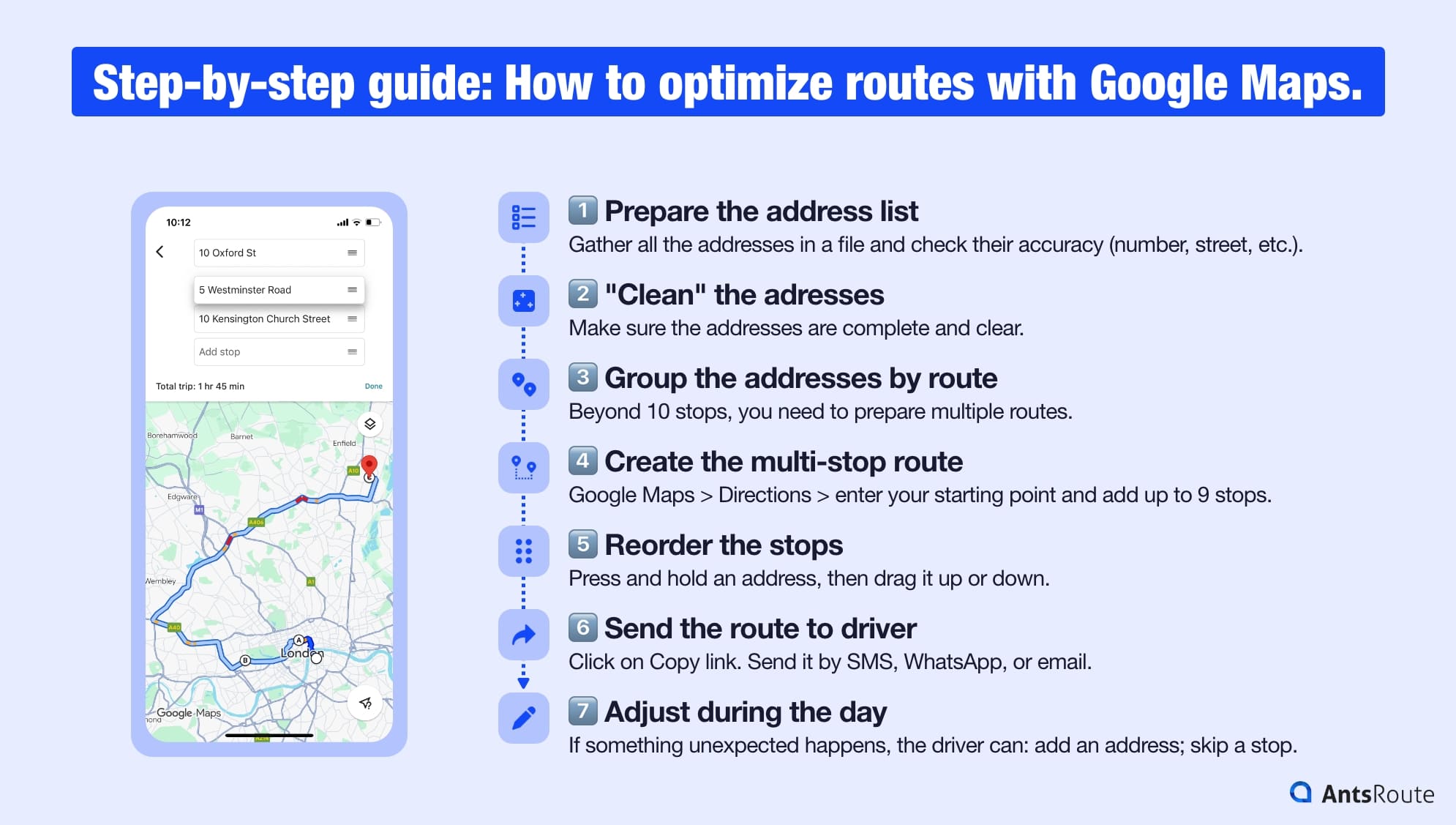
Step-by-step guide: how to optimize your routes with Google Maps.
Step 1: Prepare the address list
Before even opening Google Maps:
- Gather all the addresses in a file.
- Check their accuracy (number, street, postal code).
- Note any constraints: opening hours, preferred time windows, service duration, useful comments.
Good to know: The more accurate your data is, the smoother your route will be.
Step 2: “Clean” the addresses
Google Maps interprets addresses correctly, but they need to be complete and clear.
- Use the full address rather than just a company name.
- Check Google Maps’ suggestions to avoid incorrect location matching.
- Fix duplicates and typographical errors.
Step 3: Group the addresses by route
Google Maps limits routes to a maximum of 10 stops. If you have:
- 20 stops, you will need to prepare two routes of 10 points each.
- Several drivers, you will need to assign a geographic area to each one.
Step 4: Create the multi-stop route in Google Maps
For example, from a computer:
- Open Google Maps.
- Click the Directions icon.
- Enter your starting point.
- Add your first destination address.
- Click the “+ Add destination” button to add a second address.
- Repeat until you reach 9 stops (in addition to the starting point).
The route appears instantly on the map.
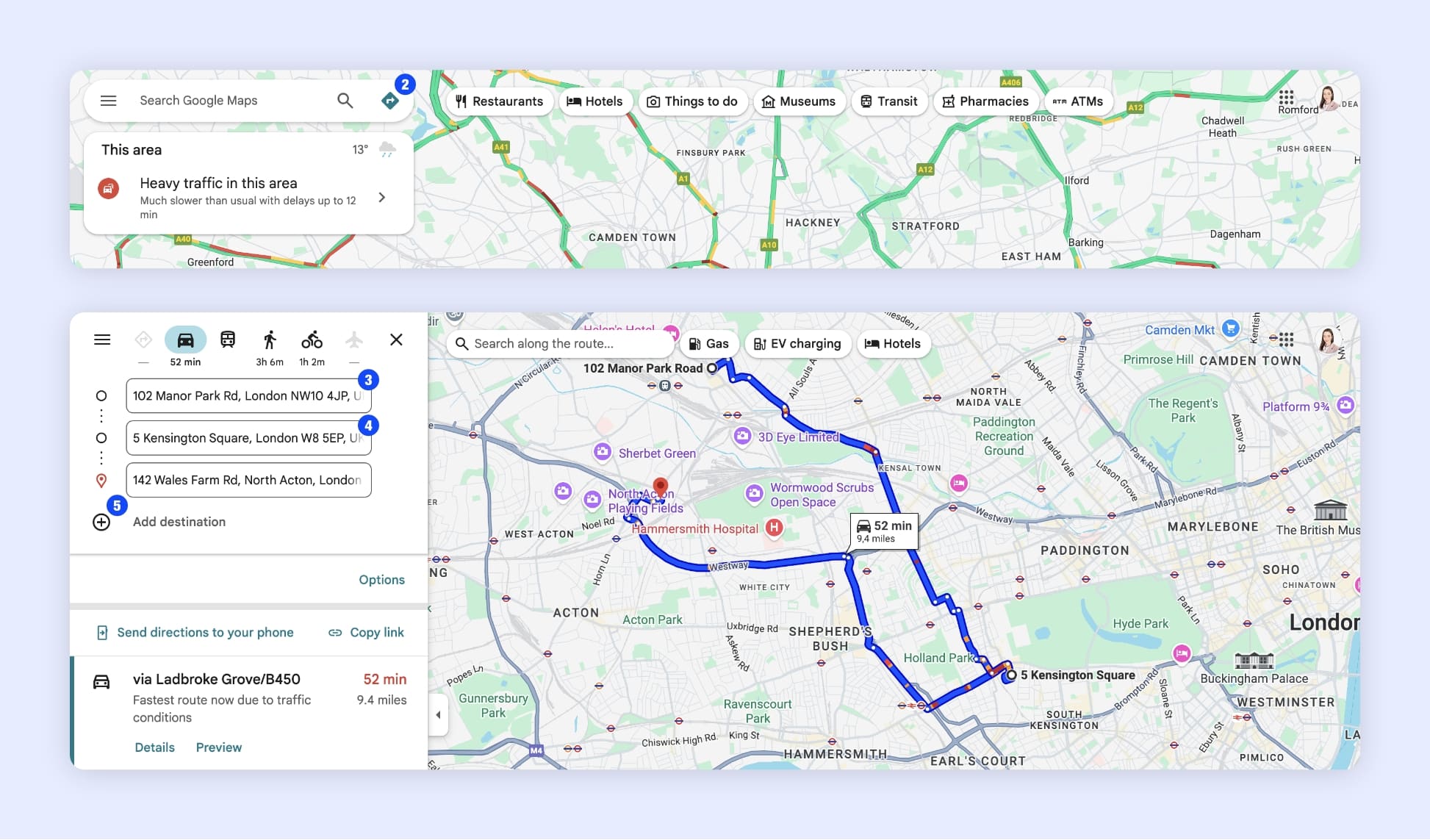
Creating a multi-stop route on Google Maps.
Step 5: Reorder the stops
Google Maps does not reorganize your route automatically.
You must therefore adjust the order manually:
- Hold an address and drag it up or down.
- Observe the impact on total time and distance.
- Try to follow a circular route logic or a zone-based sequence.
It is a bit “hands-on”, but essential to avoid unnecessary detours.
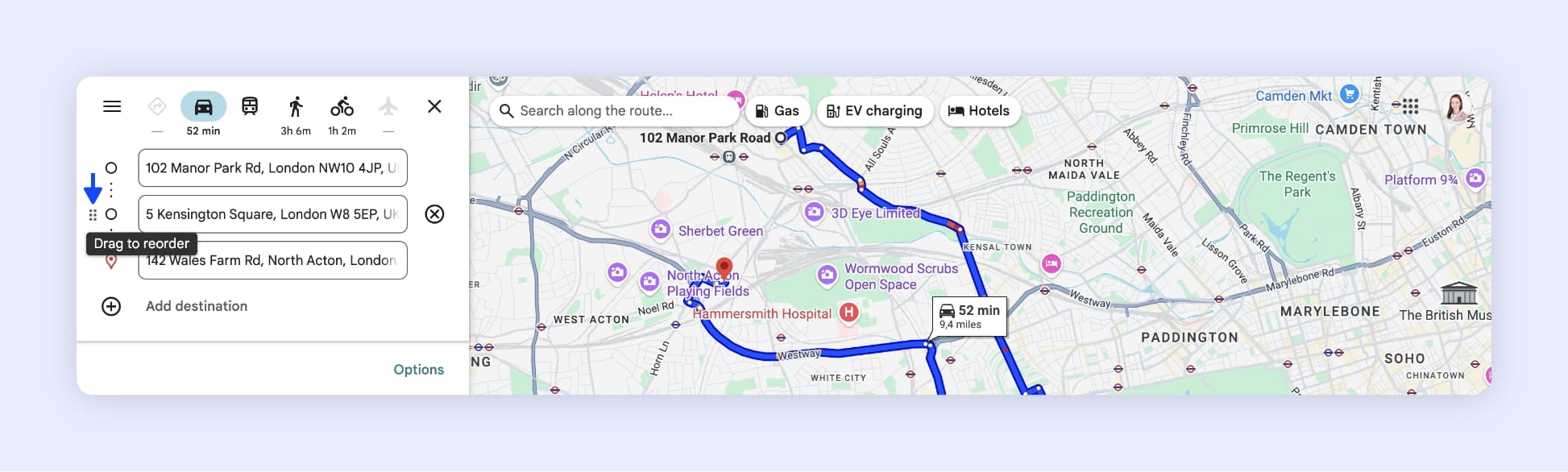
Reordering the stops on Google Maps.
Step 6: Send the route to the driver
Once the route is defined:
- Click on Copy link.
- Send it by SMS, WhatsApp, or email.
- The driver can open the route directly in the Google Maps app.
☝️ Good to know: If you are completing the route yourself, you can simply click “Send directions to your phone”.
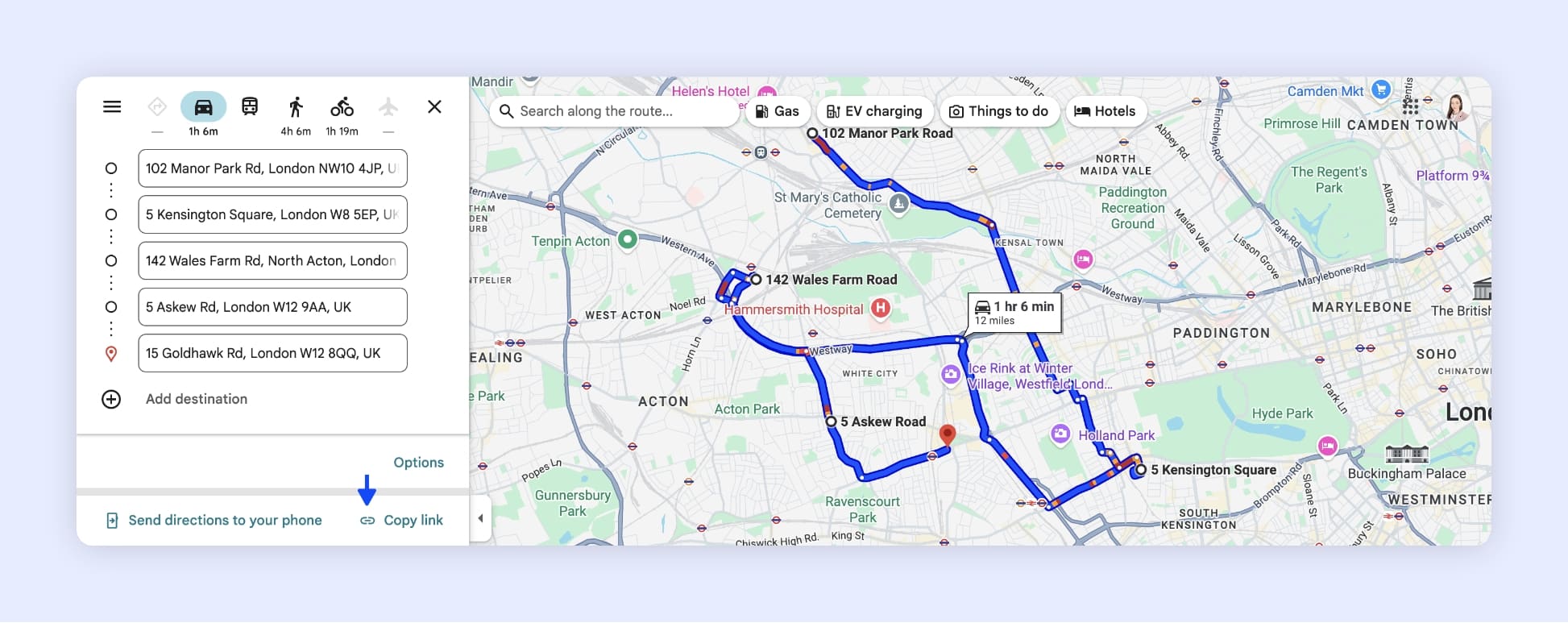
Sharing a Google Maps route.
Step 7: Adjust during the day
If something unexpected happens (for example: delay, cancellation, new address), the driver can:
- add a destination manually,
- skip a stop,
- restart navigation to the next stop.
This works as a quick fix, but it will never recalculate the full route.
Step 8: Evaluate your limits
After a few days, ask yourself the following questions:
- Do you spend more than 20 minutes preparing your routes?
- Do you often exceed 10 stops?
- Do you manage multiple drivers?
- Do you have time windows or industry-specific constraints (multiple returns to the depot, load capacities, etc.)?
- Would you like to reduce your mileage and better meet your customers’ expectations?
If the answer is yes, Google Maps has reached its limits for your activity.
☝️ Good to know: Creating a route with 10 stops from the Google Maps mobile app is also very simple.
Here are the steps:
- Open the Google Maps app.
- Tap the “Directions” icon at the bottom right of the map.
- Select your starting point (by default, your current location, but you can enter another address).
- Add a first destination.
- Tap “…” then “Edit stops”.
- Add your different stops until you reach the 10-stop limit.
- Reorder the stops by holding your finger on a line and dragging it to the desired position.
- Once the route is set, tap “Done.”
- Start navigation by tapping “Preview.”
Note: These are the steps to follow on an iPhone. On Android, the name and placement of some buttons may vary slightly.
The limitations of Google Maps for professional use
Google Maps is an excellent tool for finding an address and navigating from point A to point B. For personal use, it works perfectly well.
However, as soon as we talk about professional activity, with dozens of clients, multiple vehicles, and time constraints, its limitations become clear very quickly.
Here are the main ones.
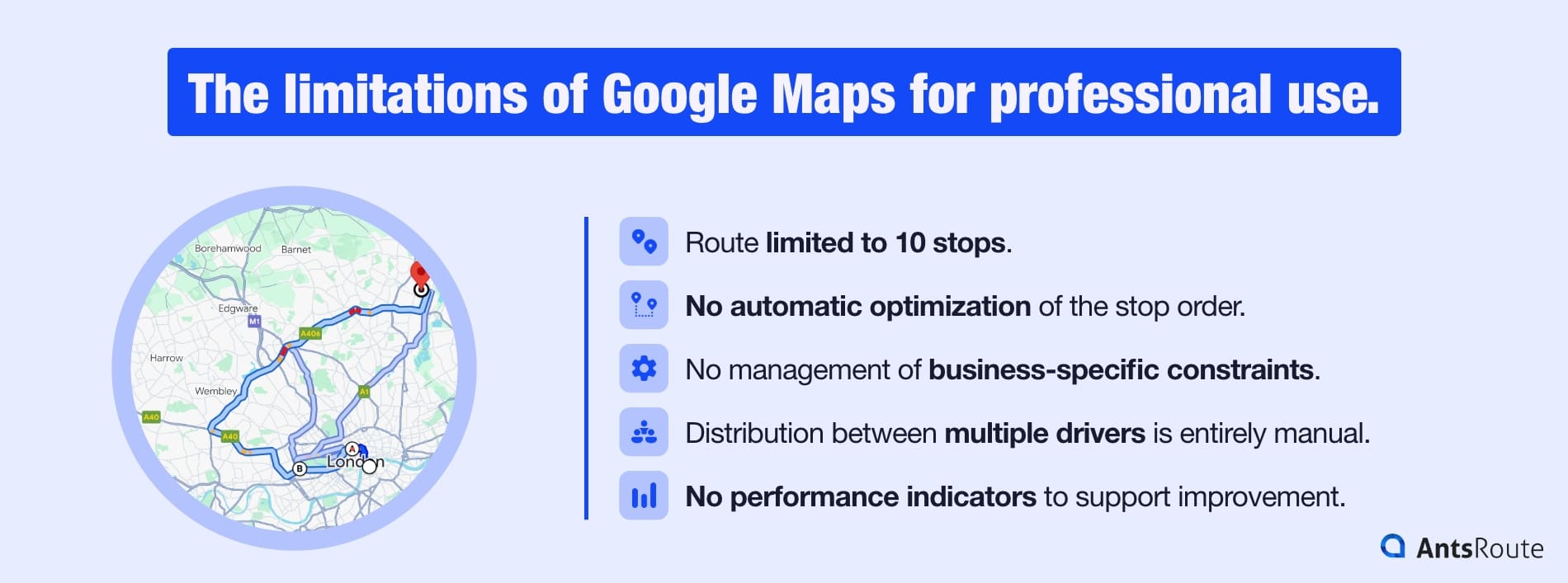
The limitations of route optimization with Google Maps.
1. Route limited to 10 stops
This is often the first frustration for businesses: in Google Maps, you cannot add more than 9 stops in addition to the starting point.
In practical terms, this means that:
- a route with 15 to 20 customers must be split into several routes,
- a driver has to switch between 2 or 3 different links during the day,
- you lose track of the overall route,
- you increase the risk of forgetting a stop or creating duplicates.
For activities such as last-mile delivery, maintenance routes, or on-site collection, you quickly exceed these 10 stops. Google Maps’ limit then forces you to improvise, which wastes time for both the planner and the driver.
2. No automatic optimization of the stop order
Even with only 10 stops, Google Maps simply proposes the route in the order in which you entered the addresses.
It does not attempt to find the best way to sequence the stops.
In practice, this means the tool does not help you reduce:
- the distance traveled,
- the total driving time,
- fuel costs and vehicle wear.
In a business context, the order of stops is not a minor detail. A poorly organized route can easily add 10, 20, or even 30% more distance, which means additional time and costs.
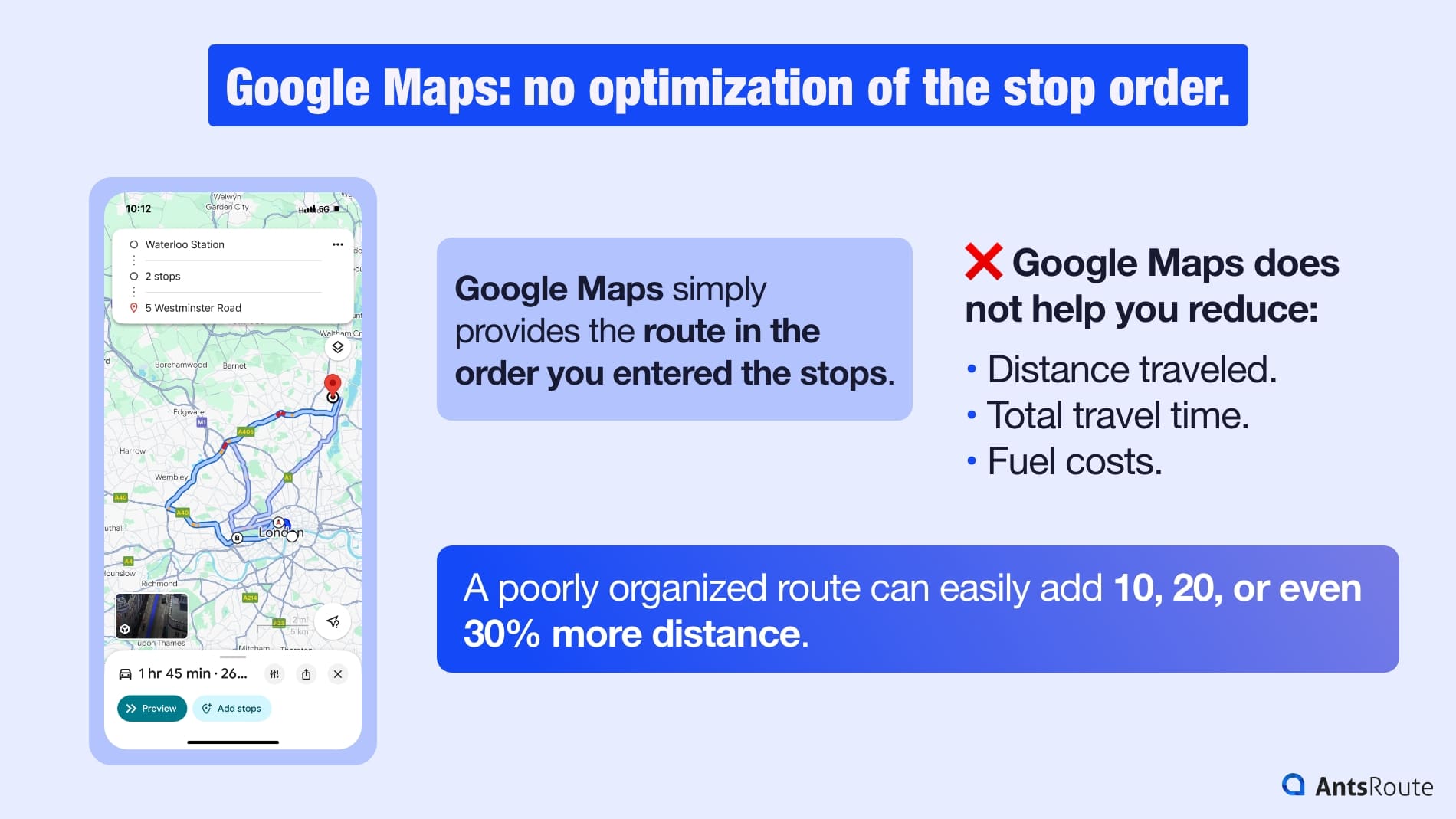
Google Maps does not optimize the stop order of a route.
As a result:
- you consume more fuel than necessary,
- drivers spend more time on the road than with customers,
- you can handle fewer requests in a single day.
Without automatic optimization, every route depends on the planner’s “common sense”, with all the limitations that this implies.
3. No management of business-specific constraints
A professional route is not just a list of addresses. It involves constraints, sometimes very strict, that must be respected.
However, Google Maps is completely unable to manage:
- customer availability time windows (for example: 09:00–11:00 or 16:00–17:00),
- service or appointment durations (20 min, 45 min, 1h30…),
- technician skills (e.g., certain tasks can only be performed by specific profiles),
- vehicle loading capacities (volume, weight, parcels, type of products),
- multi-driver distribution across a service area,,
- zones to avoid (hard-to-access city centers, restricted roads, toll roads, etc.),
- customer priorities (urgent tasks, contractual SLAs with required visit frequencies…).
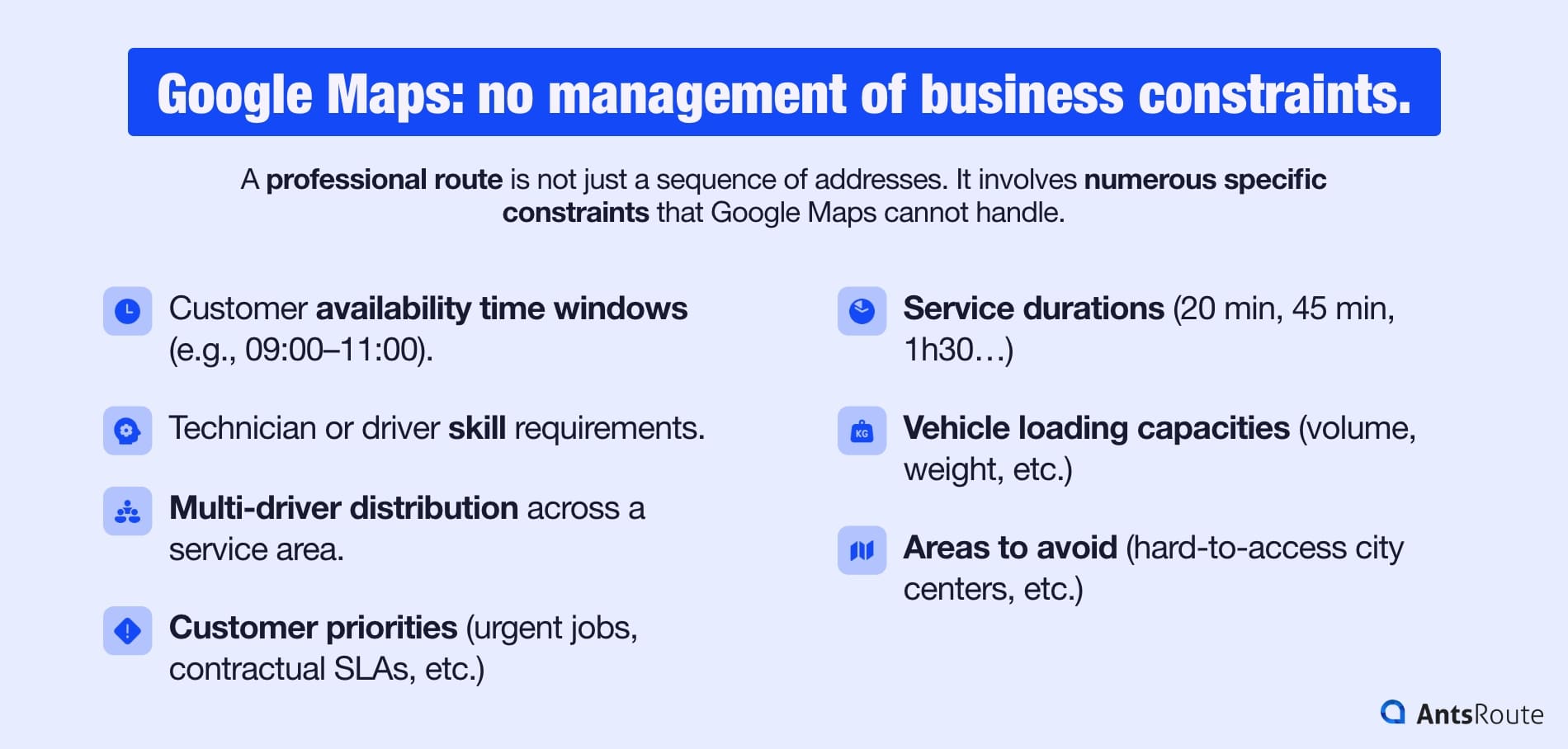
Google Maps does not handle business constraints.
In Google Maps, all stops are essentially treated as “equal.” However, for a professional, this is simply not the case.
As a result:
- you risk missing time windows,
- some customers are served too early or too late,
- certain technicians end up overloaded while others have gaps in their schedule,
- vehicles may be underloaded (or overloaded).
Over the course of a day, this leads to delays, stress, calls to customer service, and sometimes penalties or lost clients.
4. A fully manual distribution between multiple drivers
As soon as you have more than one vehicle in the field, the complexity increases. With Google Maps, to organize routes for 3, 5, or 10 drivers, you must:
- manually split the list of addresses for each person,
- try to create balanced groups based on intuition,
- create a separate route for each driver,
- manually send a different link to each one.
There is no automatic calculation to:
- distribute the workload fairly among drivers,
- reduce the number of kilometers for each route,
- take into account each driver’s start and end points for the day,
- adjust routes in case of absences or overload.
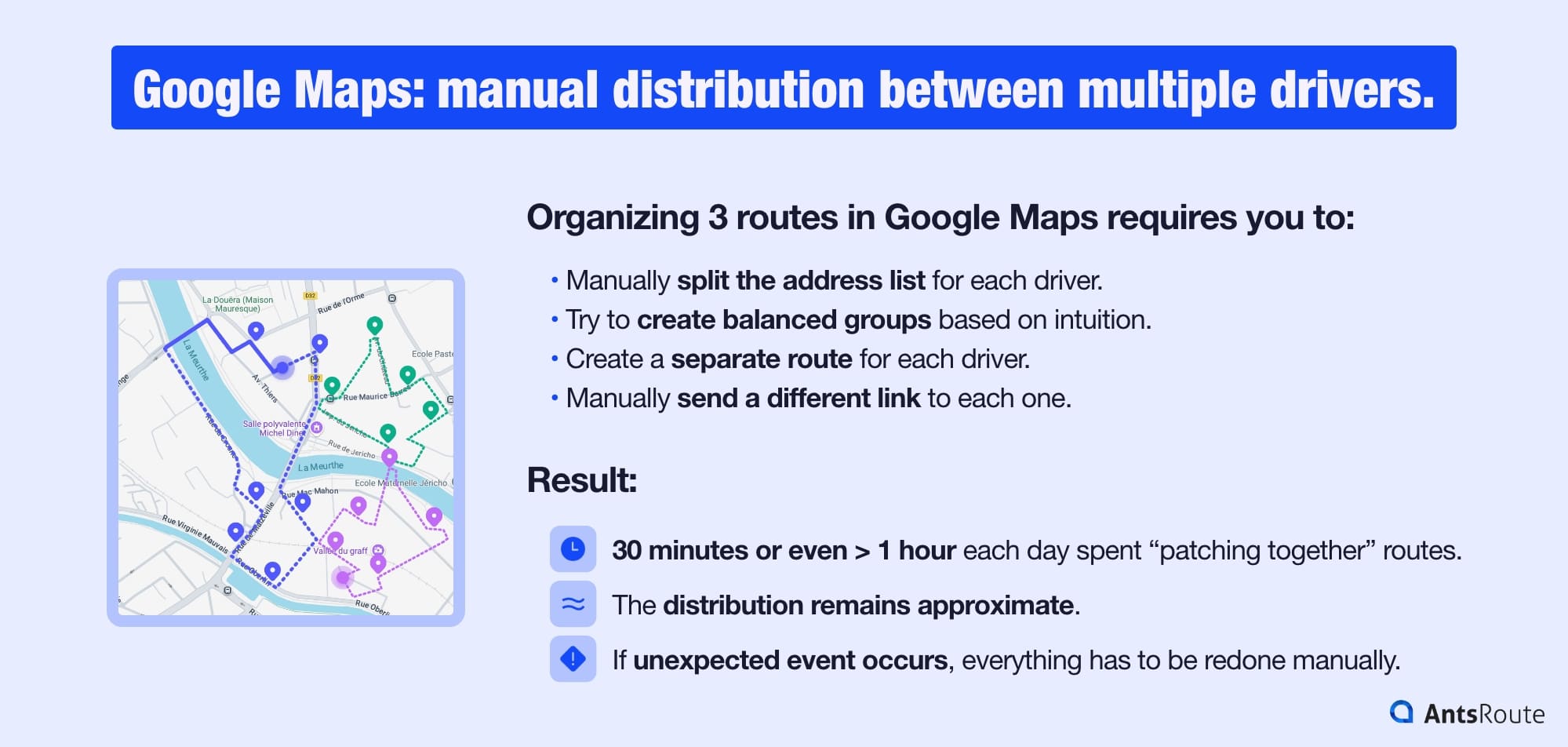
Organizing 3 routes on Google Maps.
As a result:
- the person in charge of planning may spend 30 minutes or even more than an hour each day “patching together” routes,
- the distribution remains approximate: some drivers finish very late while others finish earlier,
- as soon as an unexpected event occurs, everything has to be revised manually.
On a weekly or monthly scale, this represents a significant amount of wasted time and rising costs.
5. No performance indicators to help you improve
Google Maps focuses on navigation, not on managing your operations.
The tool does not provide:
- the total mileage of a route,
- the total time spent on the road,
- the time spent with customers,
- the potential savings if the route were better organized,
- the CO2 emissions associated with the trips,
- the on-time vs. late service rate,
- comparisons between planned and completed routes.
Without this information, it becomes very difficult to identify the most costly routes, measure the impact of organizational changes, or track your objectives (for example: reducing mileage by 15% in one year).
In summary: with Google Maps, you can “run” your teams, but you cannot precisely manage your operations or implement a continuous improvement process.
☝️ Good to know : Google My Maps is not an optimization solution.
Like many professionals, you may have discovered Google My Maps only recently. It is an extension of Google that allows you to create custom maps. The tool can indeed be useful for:
- importing a list of addresses,
- displaying points on a map,
- creating zones or grouping customers by color,
- sharing a map with a team.
But be careful: Google My Maps is not designed to optimize a route.
It offers no automatic optimization, no smart reorganization of stops, and no management of professional constraints. The routes you create in My Maps are ultimately sent to Google Maps, which remains limited to 10 stops and subject to all the restrictions mentioned earlier in the article.
Concrete example: why Google Maps is sufficient for 5 stops but not for 25
Let’s take the case of a company that performs maintenance operations on elevators.
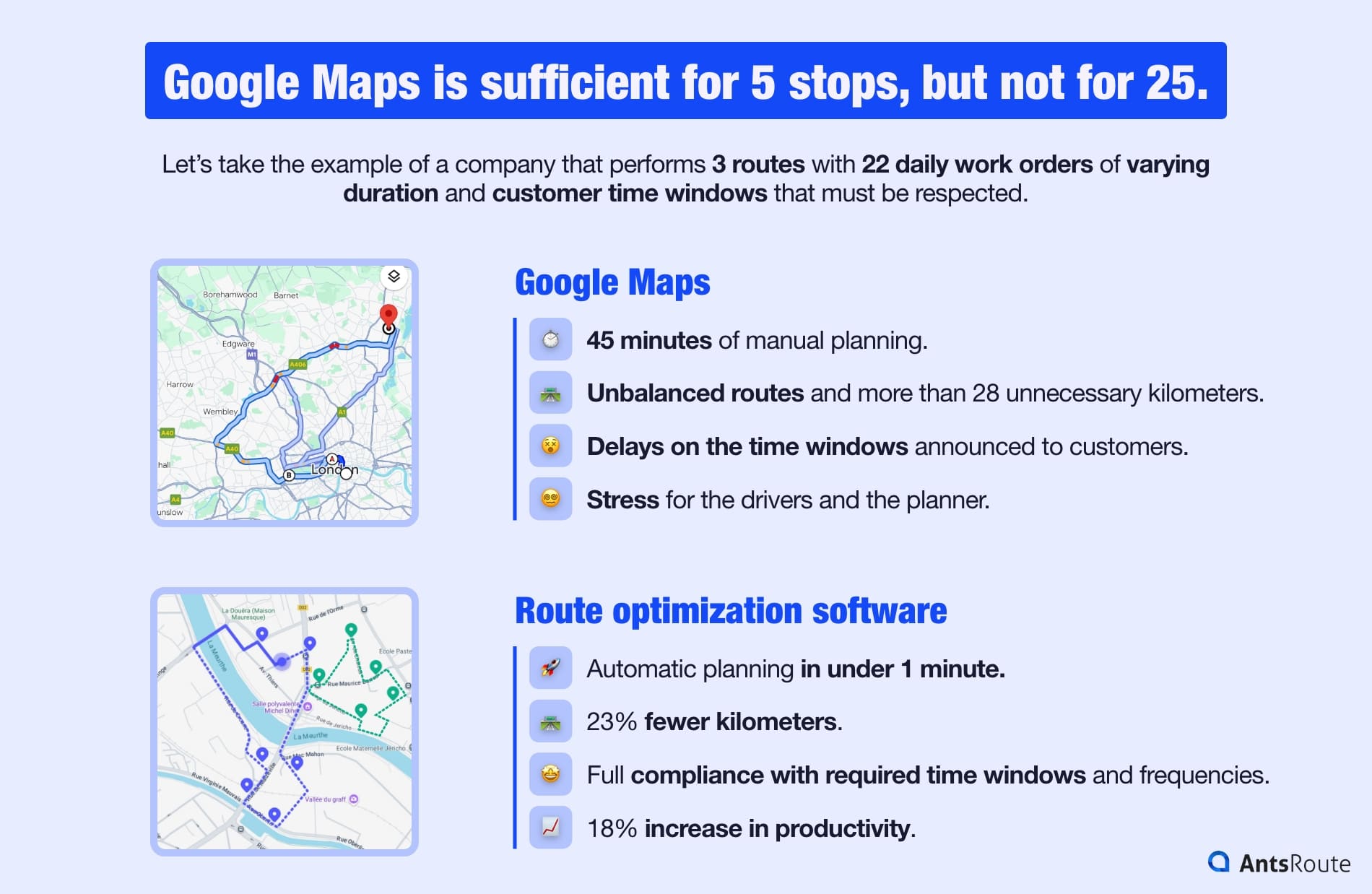
Planning three maintenance routes: Google Maps vs. Route Optimization Software.
The situation:
- 3 technicians;
- 22 daily maintenance operations;
- customer time windows to respect;
- required service frequencies;
- variable service durations;
- some customers located in remote areas.
Result with Google Maps:
- 45 minutes of manual planning;
- unbalanced routes;
- delays on customer time windows;
- over 28 unnecessary kilometers;
- stress for technicians and the planner.
Result with optimization software:
- automatic planning in under 1 minute;
- 23% reduction in kilometers;
- 18% increase in productivity;
- full compliance with time windows and required frequencies;
- no missed jobs.
Google Maps vs. Optimization Software: The 2026 Comparison
| Features | Google Maps | Route optimization software |
| Number of stops supported | 10 | Unlimited |
| GPS navigation | ✔️ | ✔️ |
| Automatic optimization | ❌ | ✔️ |
| Smart reordering | ❌ | ✔️ |
| Multi-driver | ❌ | ✔️ |
| Time windows | ❌ | ✔️ |
| Service duration | ❌ | ✔️ |
| Vehicle capacities | ❌ | ✔️ |
| KPI and reporting | ❌ | ✔️ |
| Handling unforeseen events | ❌ | ✔️ |
| Time savings on planning | Low | Very important |
Google Maps remains excellent for navigation, but dedicated software becomes essential as soon as you are dealing with professional routes.
☝️ Ready to get started? We invite you to check out our comparison of the best route optimization software.
When should you switch to optimization software?
Google Maps can help when you are starting out, but there comes a point where its manual operation clearly shows its limits. In general, switching to optimization software becomes necessary when your activity grows and routes become too complex to manage intuitively.
This happens in particular when:
- you exceed around fifteen stops per day and the 10-stop limit in Google Maps forces you to create several separate itineraries,
- you have multiple drivers or technicians and you juggle several routes that need to be balanced every day,
- your customers require time windows, which makes the order of visits even more difficult to organize manually,
- you lose a lot of time preparing your routes, sometimes 30 minutes to 1 hour every morning,
- you must absolutely respect the announced arrival times to improve customer satisfaction or comply with contractual commitments (SLA),
- you are looking to reduce logistics costs, including fuel, unnecessary kilometers, or overtime,
- you want to handle more requests each day without immediately hiring additional drivers.
When these situations add up, and often just two or three of these criteria are enough, Google Maps is no longer suitable. Optimization software then allows you to move to a more professional way of working: shorter routes, better workload distribution, constraint management, automation, and above all, considerable time savings in planning.
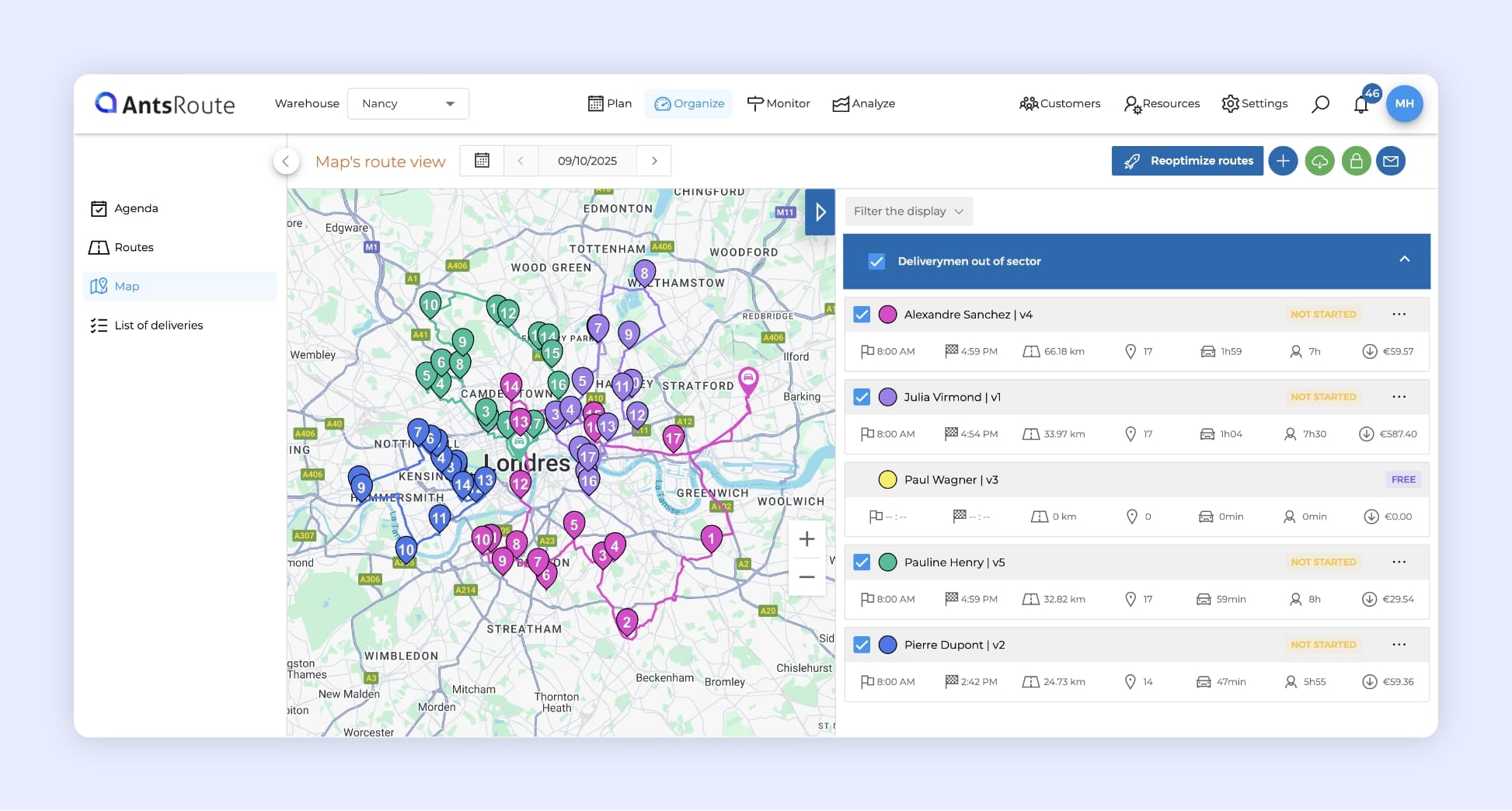
AntsRoute route optimization software.
We invite you to see for yourself the potential benefits of using route optimization software. Enjoy a 7-day free trial of AntsRoute, one of the leading tools.
➡️ Book a demo.
➡️ Discover pricing.
To conclude, here is an FAQ gathering the most common questions professionals ask when using Google Maps to organize their routes. It will help you clarify any remaining uncertainties and choose the tool best suited to your activity.
FAQ: route optimization with Google Maps
No. Google Maps is excellent for calculating a route, integrating real-time traffic, or offering different transport modes, but it cannot optimize the order of stops. If you need to visit multiple addresses, the app will simply follow the order in which you entered them, without trying to find the fastest or shortest sequence.
Google Maps can handle up to 10 stops maximum, including the starting point and the final destination. For delivery, maintenance, or field service businesses, this limit quickly becomes restrictive. Beyond that, you need to use a specialized tool or split your route into several segments.
No. The app does not offer any feature for automatically distributing routes among several drivers. Each itinerary must be created manually, driver by driver. If you need to assign dozens of addresses to multiple vehicles, dedicated planning software becomes essential.
Yes, and this is actually the ideal workflow:
- You optimize the route in dedicated software (to manage constraints, priorities, time windows, etc.).
- You export the final itinerary to Google Maps for GPS navigation.
WRITTEN BY

Marie Henrion
At AntsRoute, Marie has been the marketing manager since 2018. With a focus on last-mile logistics, she produces content that simplifies complex topics such as route optimization, the ecological transition, and customer satisfaction.
Free 7-day trial | No credit card required
Contenu
- Google Maps for Route Optimization: What the Tool Can Actually Do
- Step-by-Step Guide: How to Optimize Your Routes with Google Maps
- Step 1: Prepare the address list
- Step 2: “Clean” the addresses
- Step 3: Group the addresses by route
- Step 4: Create the multi-stop route in Google Maps
- Step 5: Reorder the stops
- Step 6: Send the route to the driver
- Step 7: Adjust during the day
- Step 8: Evaluate your limits
- The limitations of Google Maps for professional use
- 1. Route limited to 10 stops
- 2. No automatic optimization of the stop order
- 3. No management of business-specific constraints
- 4. A fully manual distribution between multiple drivers
- 5. No performance indicators to help you improve
- Concrete example: why Google Maps is sufficient for 5 stops but not for 25
- Google Maps vs. Optimization Software: The 2026 Comparison
- When should you switch to optimization software?
- FAQ: route optimization with Google Maps