September 2026: What’s new in AntsRoute?

Blog > Product updates > September 2026: What’s new in AntsRoute?
September 2026: What’s new in AntsRoute?
Published on 29 September 2026 • Reading time: 7 min read
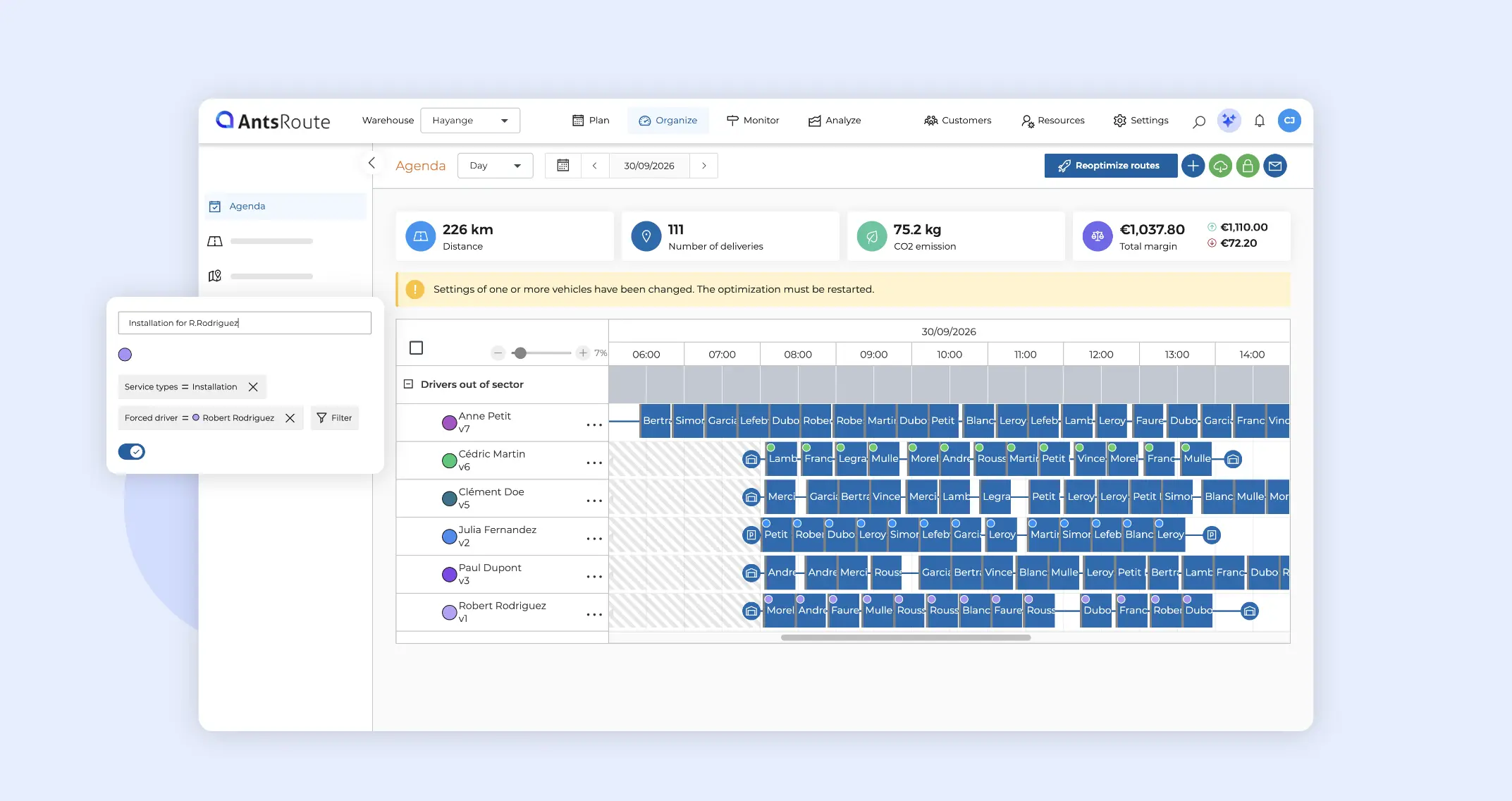
This month, AntsRoute introduces several new features to help you visualise your jobs more clearly, identify planning issues more easily and tailor the platform even more closely to your business processes.
New this month: display rules that use colours to help you spot specific jobs, improved management of unassigned jobs, new options for calculating the price of your deliveries, vehicle assignment directly from the Agenda, and greater control over the notifications you send.
Discover all the new AntsRoute features for September.
In this article:
- Spot your jobs more easily with display rules
- Identify and manage unassigned jobs more easily
- Further customise how job prices are calculated
- Assign a vehicle to a field worker directly from the Schedule
- Choose which notifications to send for remote jobs
- Other new features
Spot your jobs more easily with display rules
Want to identify specific jobs in your routes at a glance? The new display rules allow you to assign colours to jobs based on criteria you define.
You can highlight specific deliveries or jobs according to their service type, required driver, duration or other criteria available in the filters.
This new feature makes your schedules, lists and maps easier to read. For example, you can use a specific colour to immediately identify jobs for a particular service type that must be carried out by a specific driver.
☝️ This feature is available from the PRO plan onwards.
Create a display rule
To define your rules, go to:
- Settings > Global settings > Display rules
- Click the + button, then enter a name for your rule and choose the colour you want to apply.
- Next, click Filter to define the conditions that jobs must meet for this colour to be applied.
Note: If several rules apply to the same job, AntsRoute uses the active rule positioned highest in the list.
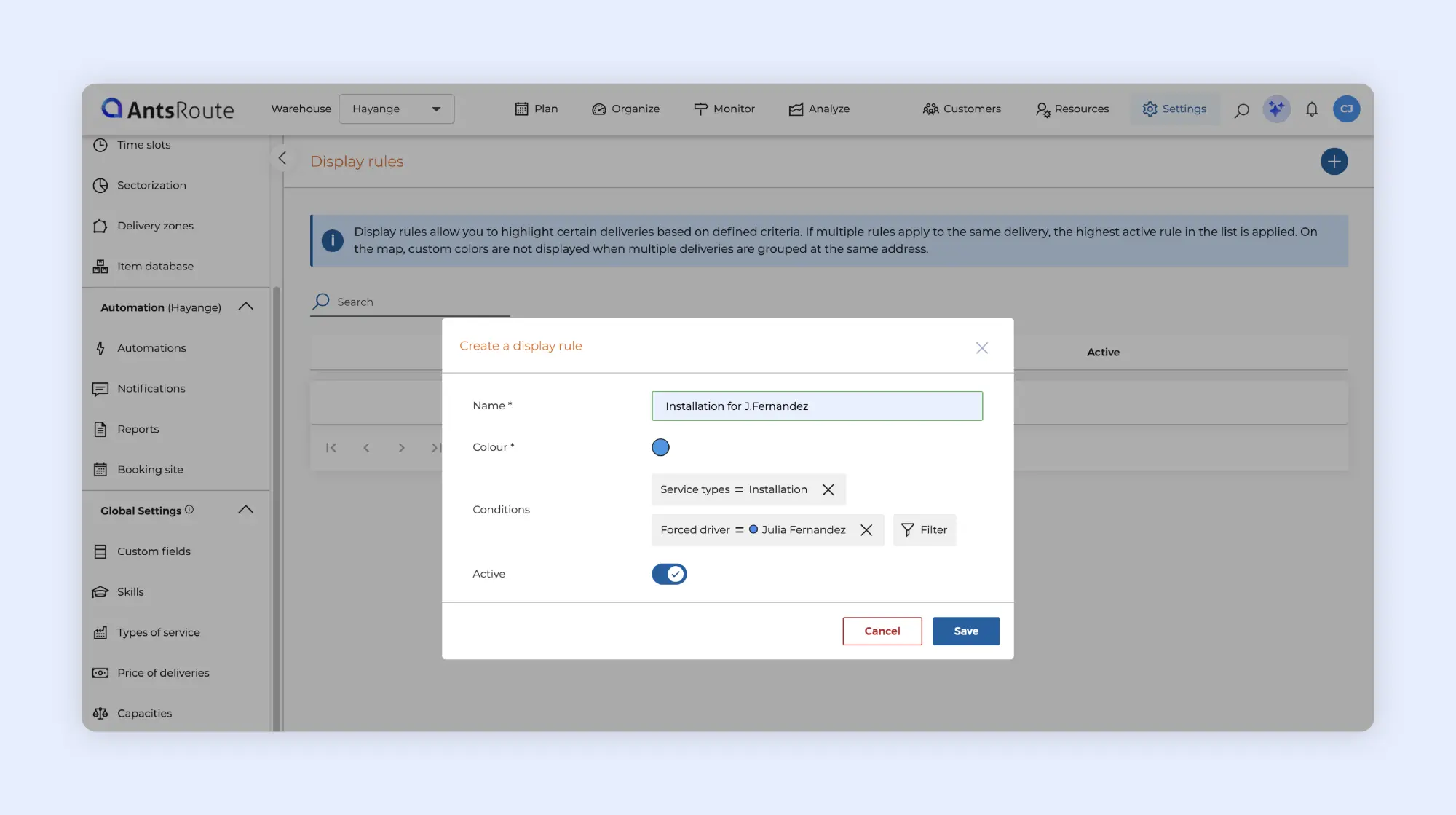
Creating a display rule.
View your colours across the different modules
Once your rules have been configured, the colours associated with your jobs are visible in several places throughout AntsRoute.
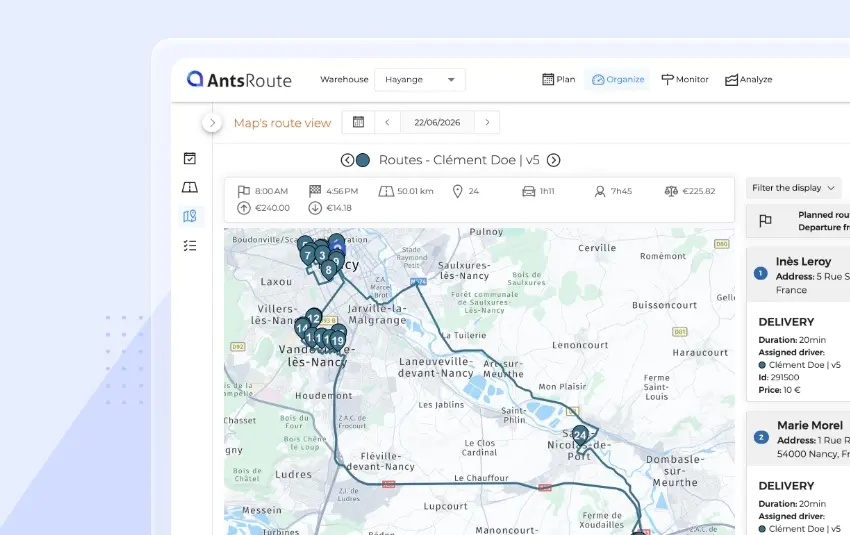
On route maps, a coloured dot appears directly on the job marker. In the Agenda, the dot is displayed in the left-hand corner of the block representing the job.
In job tables, a new Display rule column also shows the coloured dot and the name of the corresponding rule. Finally, in a route list, the colour appears next to the scheduled arrival time.
If you use the job basket, display rules are also available in the Basket of deliveries tab. The coloured dots also appear on the markers for jobs in the basket when viewing the route map.
This makes it easier to spot jobs that require your attention and plan them accordingly.
Good to know: when several deliveries at the same address are grouped together on the map, custom colours are not displayed.
➡️ To find out more about display rules, read the dedicated support article.
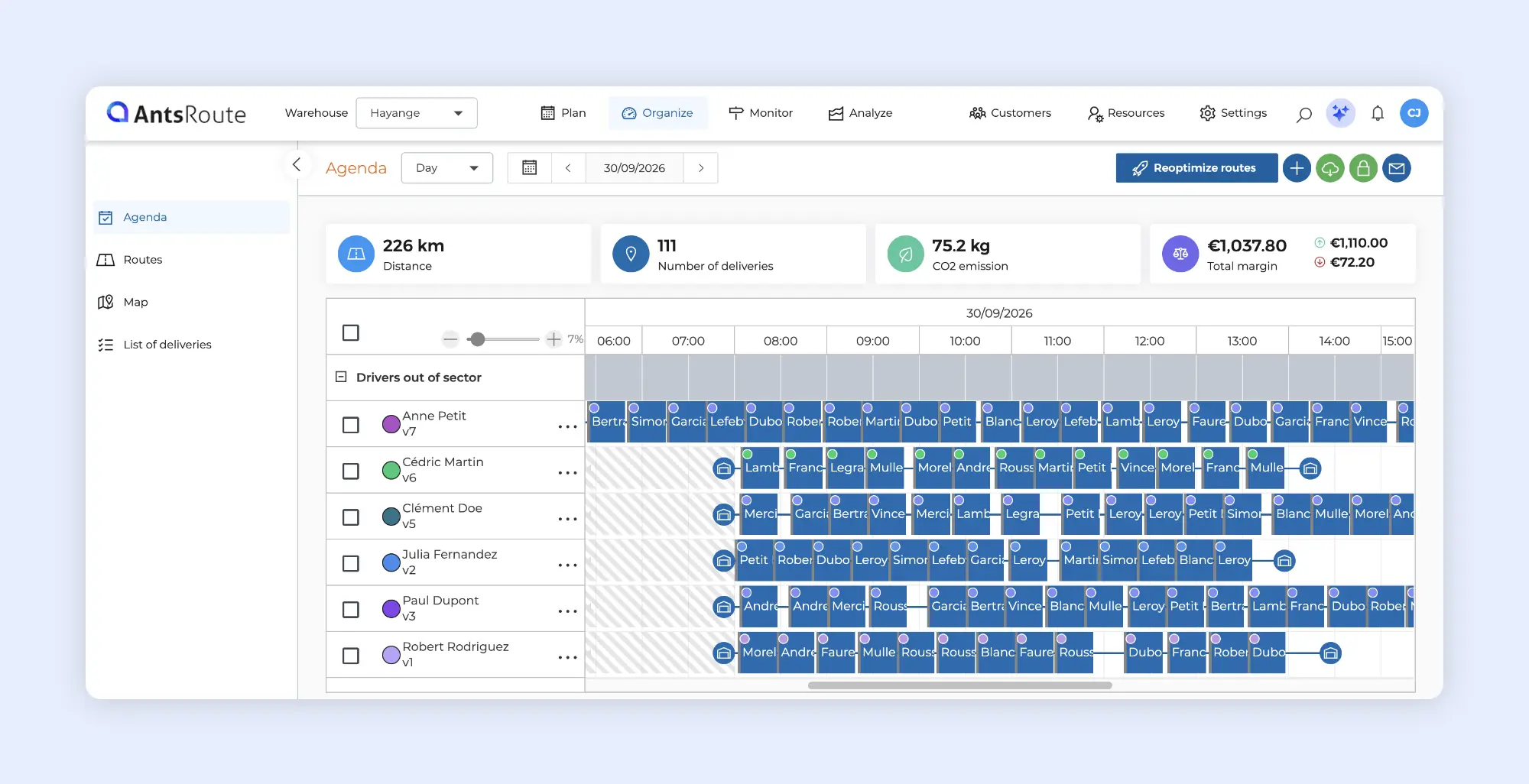
Display rule: viewing colors in the schedule.
Identify and manage unassigned jobs more easily
The way unassigned jobs are managed has been improved, with several changes designed to help you quickly understand why a job could not be added to a route and take action more easily.
A new interface for unassigned jobs
The panel displaying unassigned jobs has been redesigned to make it easier to use on a daily basis.
You can now choose to hide the map and use all the available space for the list of jobs. To do this, use the Filter button above the map and untick Display map.
The actions available when you select one or more jobs — Move, Add to basket and Delete — now remain accessible at the bottom of the panel.
This means you no longer need to scroll back to the top of the list to access these actions when viewing a large number of unassigned jobs.
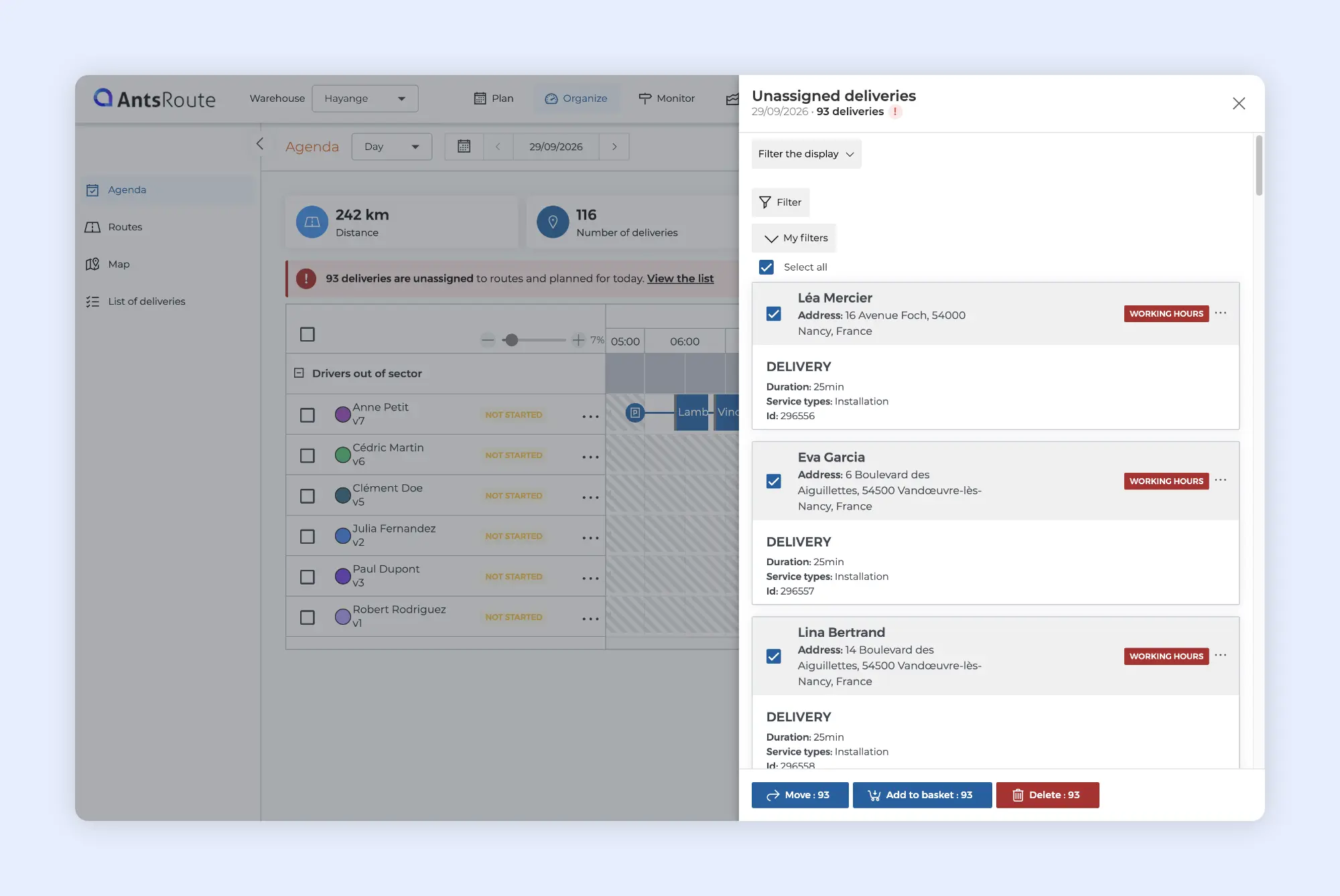
Display of unassigned deliveries in AntsRoute.
Filter jobs by their reason for being unassigned
Another new feature allows you to filter jobs according to their reason for being unassigned.
This is particularly useful for quickly identifying the cause of a planning issue. For example, you can display only the jobs that could not be assigned due to a capacity issue.
To apply this filter, go to:
- Organise > List of deliveries
- Click Filter > Unassignment reason
- Select the required value, such as Capacity, then click Apply.
This filter is also available directly from the unassigned jobs panel.
In job tables, a new Unassignment reason column also allows you to view this information without having to open each job individually.
This makes it easier to isolate jobs affected by the same issue and make the necessary adjustments to your schedule.
➡️ To find out more about managing unassigned jobs, read the dedicated article in our Help Centre.
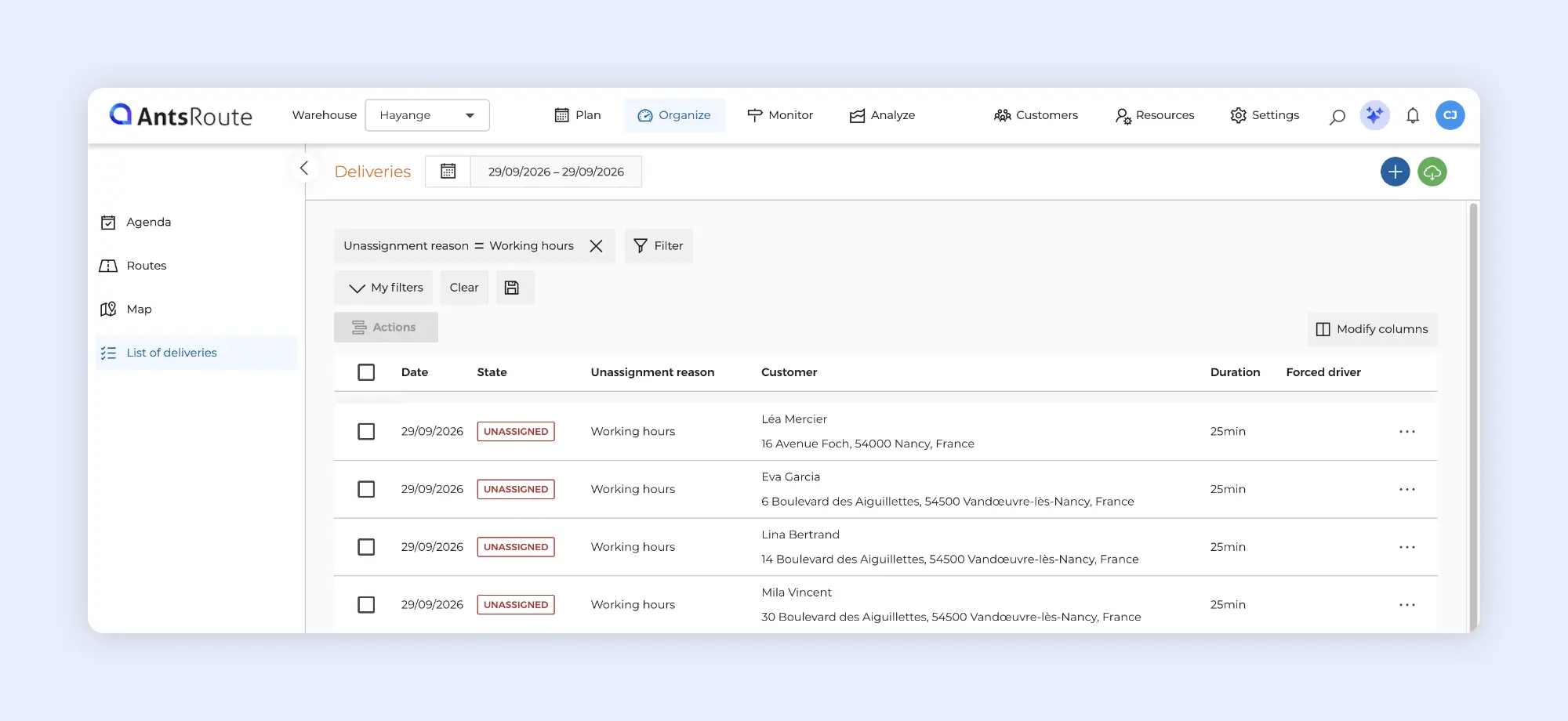
Filtering jobs by unassignment reason.
Further customise how job prices are calculated
The interface for configuring delivery price calculations has been redesigned, with more options now available for custom calculations.
As a reminder, the price of a delivery in AntsRoute can be made up of several elements:
- a base price;
- the price of items;
- the price of the service type;
- one or more custom calculations based on your custom fields.
Until now, a custom calculation could only combine a variable with a fixed value.
For example, you could define the following calculation: Number of floors × €10
You can now also use two variables within the same calculation.
For example, you can configure: Number of parcels × Price per parcel
As a reminder, variables correspond to number-type custom fields associated with your customers or deliveries.
This enhancement gives you greater flexibility to tailor job price calculations to the way your business operates and to the data associated with each service.
➡️ To find out more about calculating job prices, read this article.
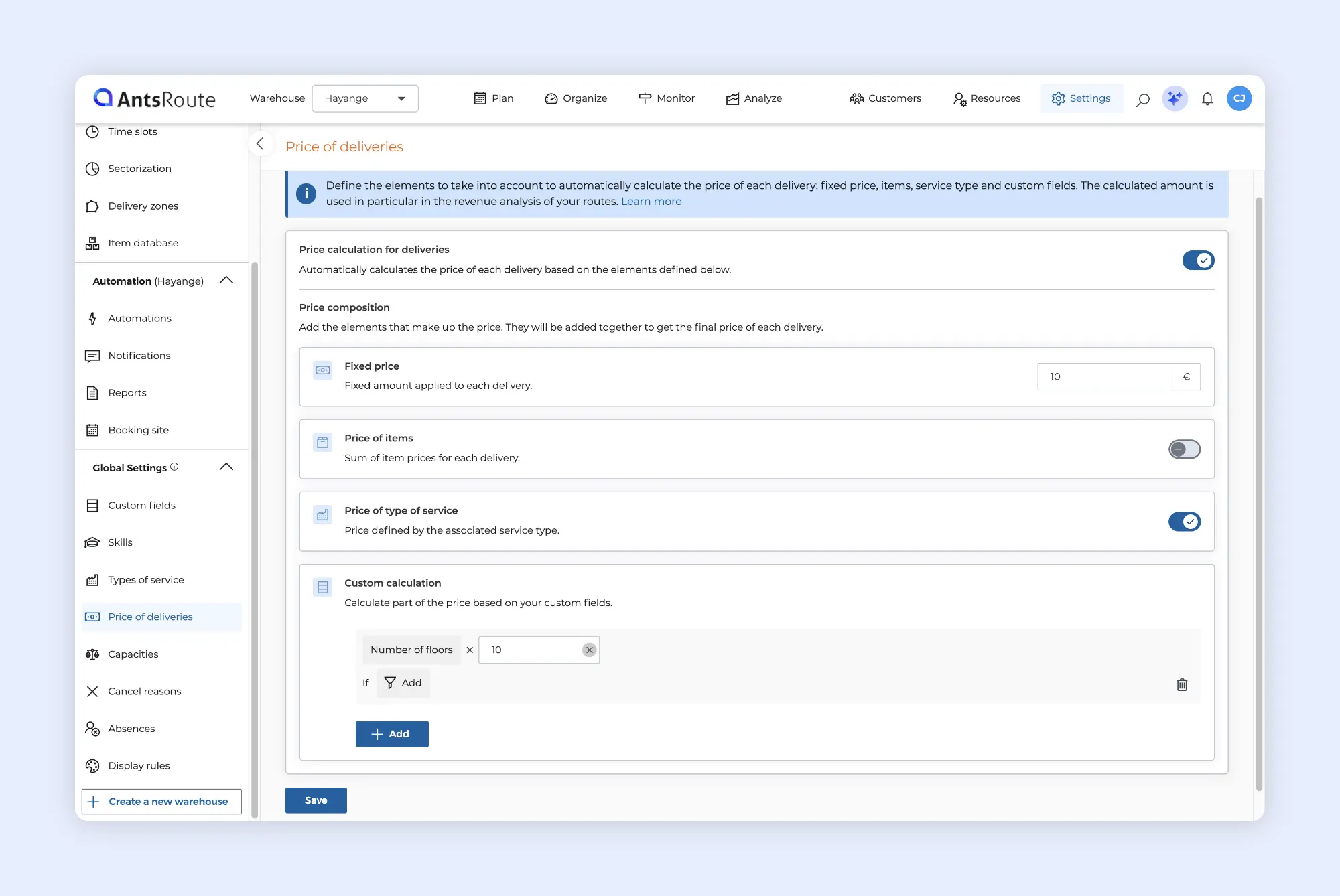
Configuring delivery price calculation.
Assign a vehicle to a field worker directly from the Agenda
If you use the vehicle assignment schedule to temporarily assign vehicles to your field workers, you can now do this directly from the Agenda.
There is no longer any need to leave the route planning area to manage vehicle assignments.
- Go to Organise > Agenda
- Find the relevant driver, then click … > Resources > Assign a vehicle
- Select the required vehicle and add the period or periods during which it should be assigned to this field worker.
This new option makes it easier to manage organisations where several field workers share the same vehicles.
Good to know: if you select a vehicle that is already assigned to another driver during the chosen period, that field worker will automatically be unassigned from the vehicle.
➡️ To find out more about the vehicle assignment schedule, read this article.
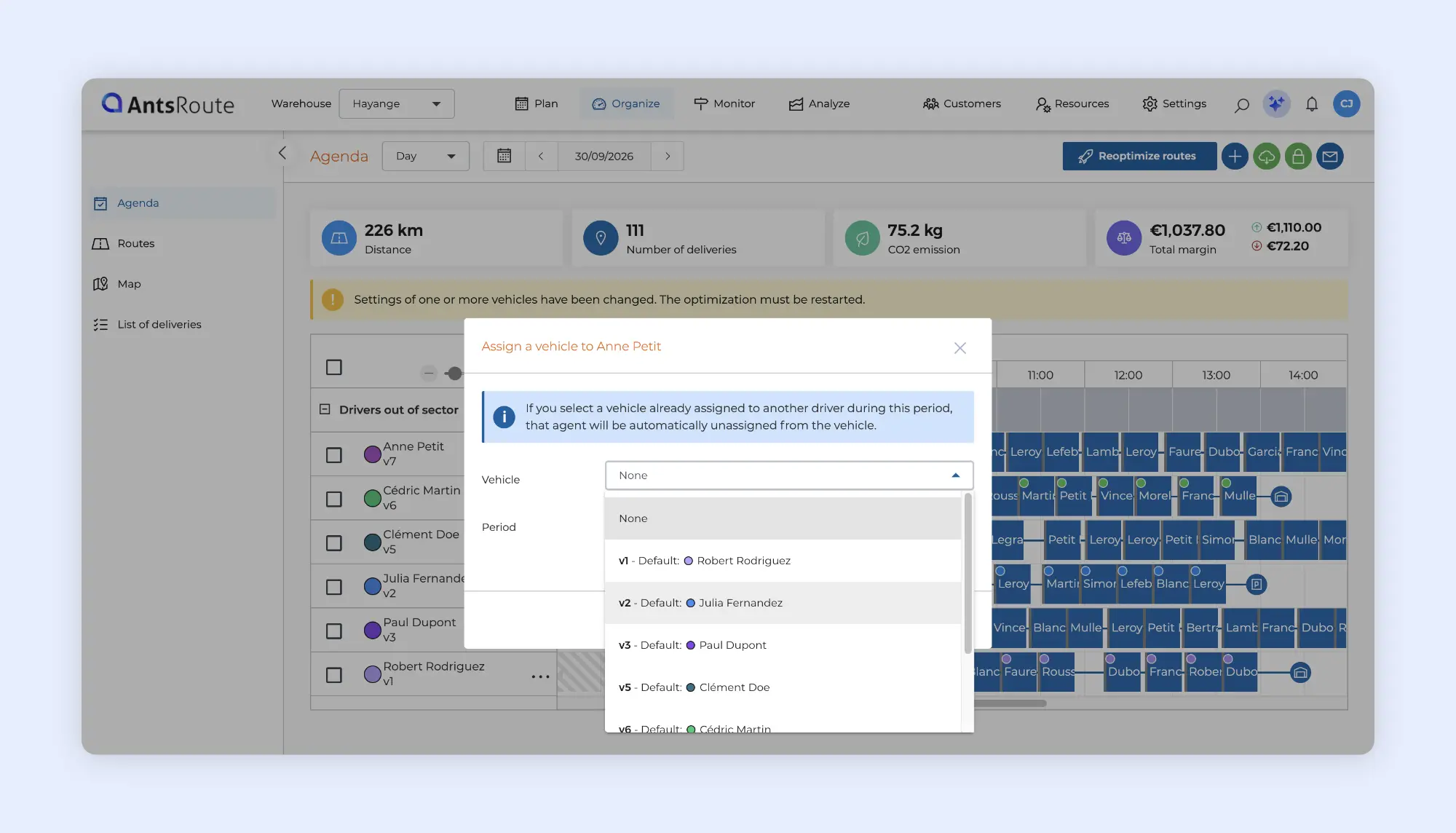
Assigning a vehicle to a driver from the schedule.
Choose which notifications to send for remote jobs
If some of your jobs are carried out remotely, you now have greater control over the notifications sent to your customers.
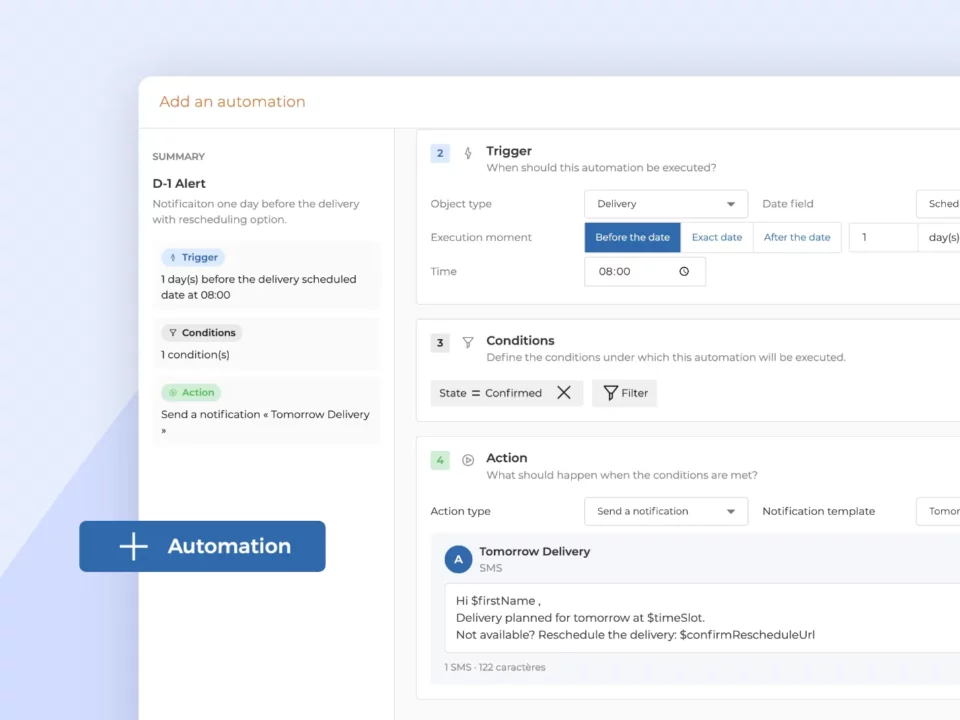
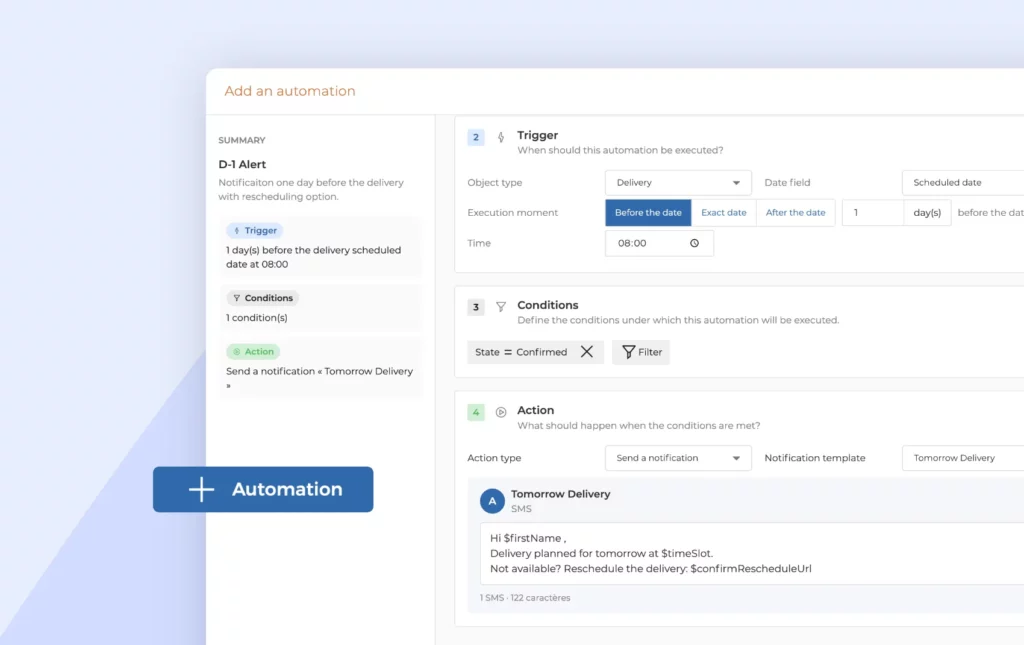
When configuring each of your notification templates, a new Send for remote deliveries option is available.
You can enable or disable it independently for each template.
This allows you to decide which communications should be sent when a job does not require a field worker to travel to the customer’s location, helping you avoid sending notifications that are not appropriate for this type of service.
This option is available for all notification triggers except Manuel notification from the mobile app.
Other new features
Add an external ID to an existing job via the public API: you can now use the AntsRoute public API to add an external ID to an existing job.
A new interface for editing start and end locations: the interface for editing a driver’s start and end locations from their profile has been redesigned to improve the user experience.
Any questions? Our support team is available via chat from your AntsRoute account or by email.
WRITTEN BY

Marie Henrion
At AntsRoute, Marie has been the marketing manager since 2018. With a focus on last-mile logistics, she produces content that simplifies complex topics such as route optimization, the ecological transition, and customer satisfaction.
Optimise your Routes Today
Free 7-day trial | No credit card required
Contenu
- Spot your jobs more easily with display rules
- Create a display rule
- View your colours across the different modules
- Identify and manage unassigned jobs more easily
- A new interface for unassigned jobs
- Filter jobs by their reason for being unassigned
- Further customise how job prices are calculated
- Assign a vehicle to a field worker directly from the Agenda
- Choose which notifications to send for remote jobs
- Other new features
- Optimise your Routes Today